Wikipedia has a native dark appearance on its mobile website, including when the site is opened in Safari on an iPhone. It is not enabled merely by switching iOS to Dark Appearance unless Wikipedia itself is set to Automatic. On the mobile site, open Wikipedia’s main menu, choose Settings, and select Light, Dark, or Automatic under Color. A Safari extension is most useful when you want one chosen palette across sites, need per-site control, or find a page that remains bright outside Wikipedia’s normal reading view.
The distinction matters because three different features can make the same article look dark: Wikipedia’s own theme, Safari Reader, and an extension-generated theme. They can look surprisingly similar on a text-heavy page, but they do not own the same parts of the experience.
The Wikipedia dark mode tested here
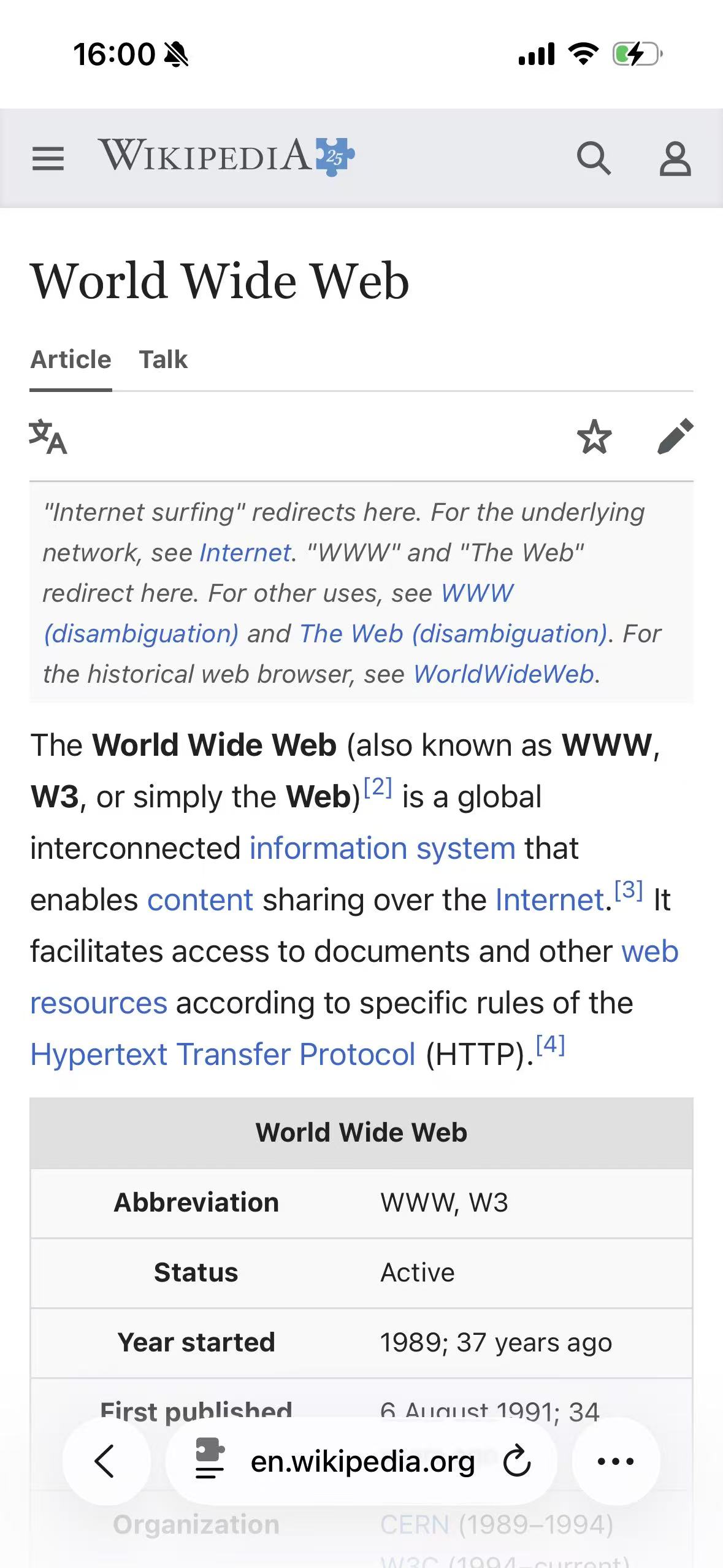
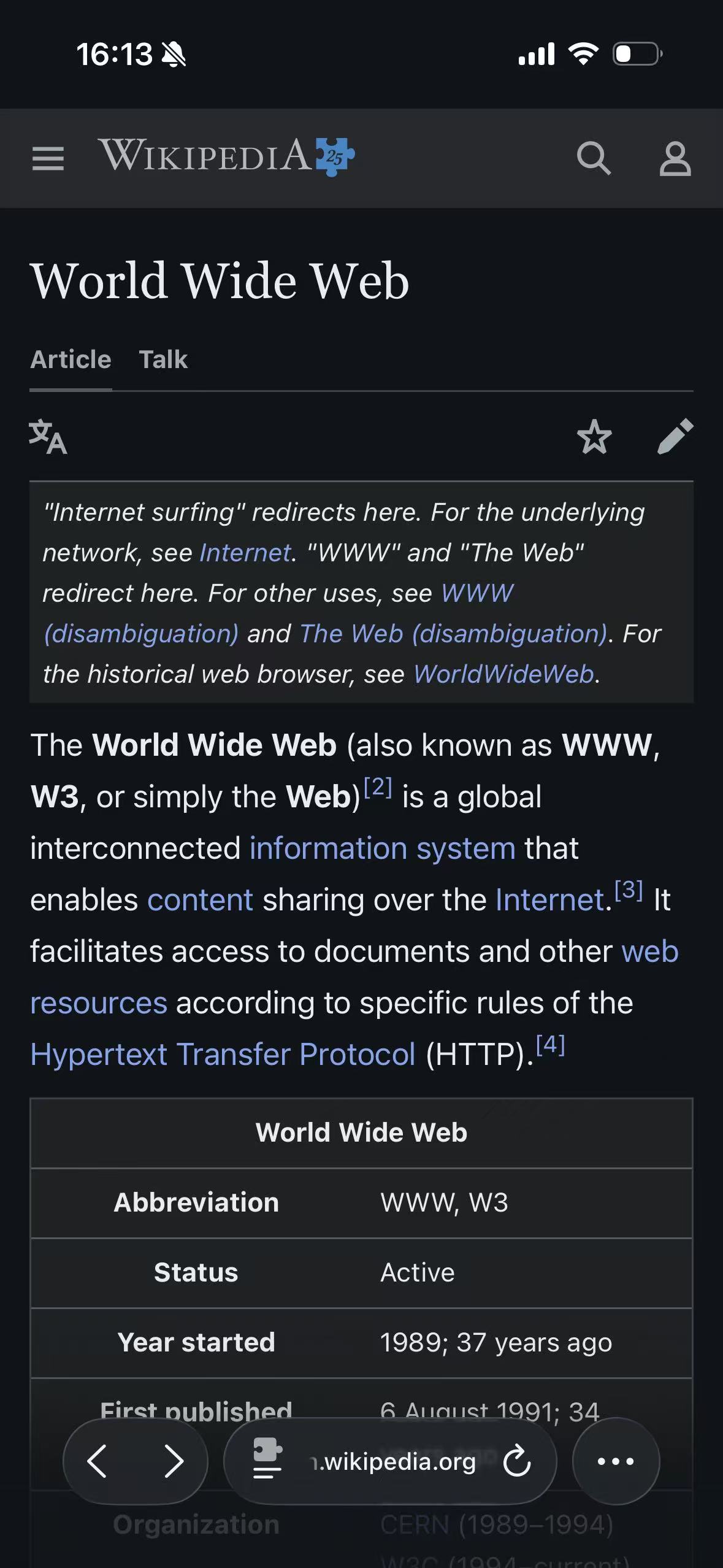
This field test uses the English Wikipedia article World Wide Web. It was chosen because the opening screen contains ordinary article text, citations, links, a notice box, navigation controls, and the start of a data table. That is enough variety to expose a crude page inversion without introducing an account, an editor, or a color-critical photograph.
| Test detail | Recorded state |
|---|---|
| Device | iPhone 16 |
| Operating system | iOS 26.5 |
| Browser | Safari |
| Website surface | English Wikipedia mobile article view |
| Compared states | Wikipedia Light, Wikipedia native Dark, and Wikipedia Light adapted with Classic Midnight |
| Source reviewed | Version 2.7.0 project configuration and extension resources |
| Last verified | July 13, 2026 |
The screenshots cover a public reading page. Editing, account preferences, Talk pages, page history, language variants, and media viewers were not part of this pass, so the result should not be read as a promise about every MediaWiki surface.
Wikipedia Light
Wikipedia native Dark
Classic Midnight
Where Wikipedia hides the setting on iPhone
Wikipedia’s mobile dark mode belongs to the website, not to Safari. The current MediaWiki dark mode manual gives the mobile path as the main menu, Settings, then the Color section. Light and Dark select a fixed website appearance. Automatic allows the page to follow the operating system through prefers-color-scheme.
That last step explains an initially confusing result: putting the iPhone into Dark Appearance does not force a Wikipedia page to change when Wikipedia is still set to Light. The operating system supplies a preference; the website decides whether to follow it. Choose Automatic if the goal is for Wikipedia to track the phone.
Wikipedia makes these choices available to logged-in and logged-out readers on its usual Vector 2022 desktop and Minerva mobile skins. A logged-out preference can depend on browser storage, so clearing website data or using a private session can make the site return to its default. Other MediaWiki installations may use another skin or may not enable the same feature at all.
Native Dark, Safari Reader, and extension rendering are separate layers
The three approaches are easy to confuse because the World Wide Web article is mostly typography and simple surfaces.
Wikipedia native Dark
Wikipedia controls the complete page skin. It knows which pieces are site navigation, article content, notices, tables, citations, editing tools, and media. It can change those components with its own design tokens and can ask template editors to make meaningful colors work in both appearances.
For this reason, Wikipedia’s native Dark option is the first choice when it is available and looks correct. It has the most context about Wikipedia’s own interface, and the extension normally respects it instead of placing another dark transformation on top.
Safari Reader
Reader extracts the main reading content and presents it in Safari’s separate reading layout. It is useful when the goal is a quieter article, larger type, or fewer page controls. It is not Wikipedia’s normal interface: navigation, tabs, editing affordances, tables, captions, and complex embedded content may be simplified or rearranged.
Reader therefore answers a different question. If you want the original Wikipedia page to remain recognizable, use Wikipedia’s theme or a page-level extension. The broader Safari distinction is covered in Safari Dark Mode on iPhone.
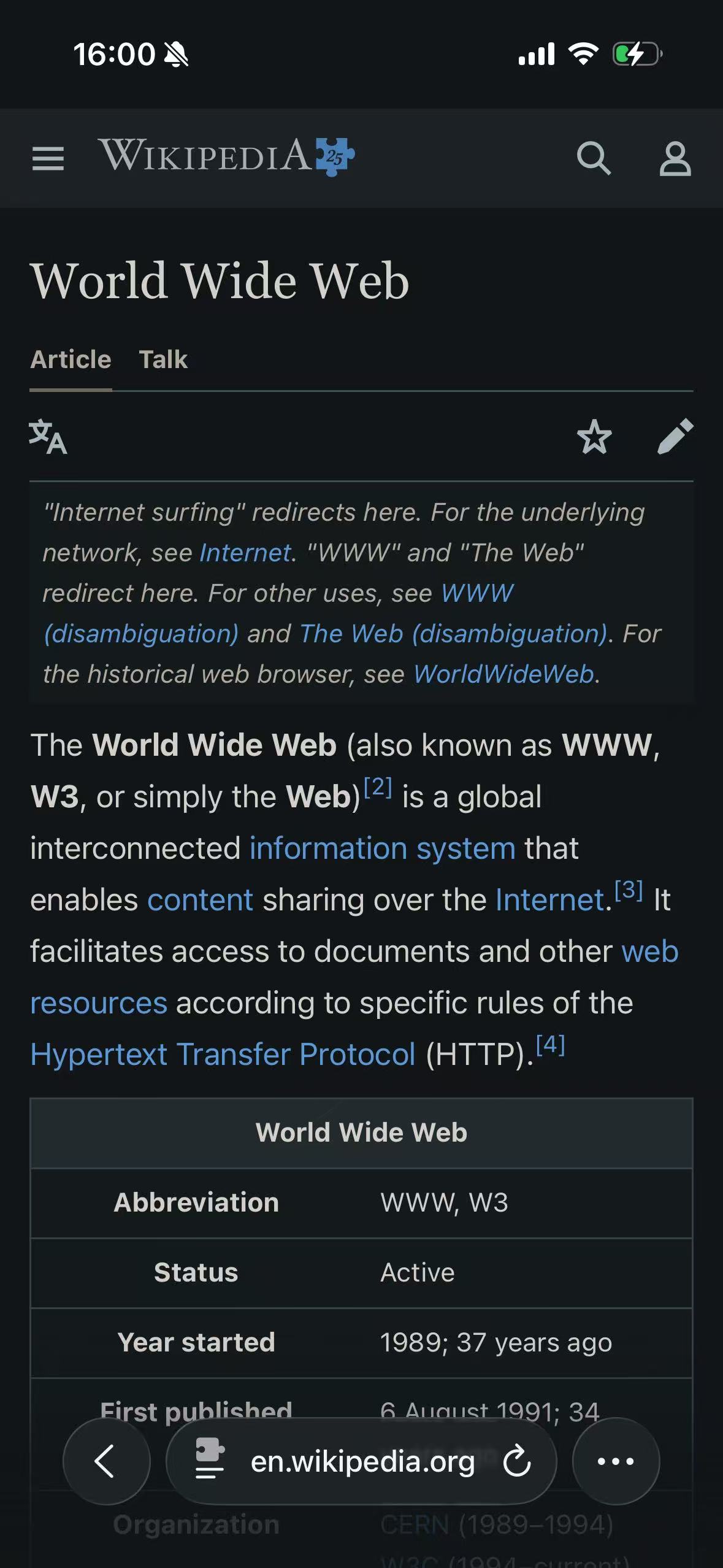
Classic Midnight through the extension
For the third screenshot, Wikipedia was explicitly returned to Light before the extension was enabled. The renderer then interpreted the light page’s CSS and generated dark replacements. It preserved blue links, separated the notice from the article background, and kept the table grid visible instead of painting every surface the same near-black.
This is not a copy of Wikipedia’s palette. The two results converge because both are restrained dark treatments of a restrained article layout. Their differences become easier to see on a page with charts, templates, maps, dialogs, or media whose colors carry meaning. The palette and renderer used in the screenshot are documented in Classic Midnight Theme for Safari.
What Wikipedia makes difficult for a general dark renderer
The opening paragraph is the easy part. A useful Wikipedia adaptation has to survive the less uniform parts of the site.
Logos, mathematics, maps, and diagrams
Wikipedia and other Wikimedia projects use wordmarks, interface icons, mathematical notation, location maps, music symbols, diagrams, and SVG assets that were not all authored in the same way. Some are ordinary images that should remain untouched. Some are dark line art on transparent backgrounds and need a careful correction to stay visible. Others encode real information in their colors and should not be recolored at all.
The shipping compatibility resources contain Wikimedia-specific handling for those cases. The dynamic renderer and media rules do not amount to a guarantee that every diagram is safe. If an article explains paint, flags, medical imagery, geological periods, data legends, or any other subject where color is evidence, compare the media with the original page before relying on it. Wikipedia’s own documentation makes the same distinction: its dark mode primarily changes backgrounds and text, while meaningful colors in templates require deliberate author care.
Tables, notices, and citation surfaces
Tables reveal whether a theme has preserved hierarchy. In the screenshots, the header row, body rows, borders, and surrounding article remain distinct in both native Dark and Classic Midnight. The notice box above the introduction also retains its boundary and italic text.
That result depends on more than turning white into black. Backgrounds, borders, foreground text, and links need different mappings. A single invert filter may make the first screen dark, but it can also reverse an image or push an already corrected asset back toward the wrong colors. How dark mode extensions protect images and video explains the media boundary in more detail.
How the extension recognizes Wikipedia’s own dark appearance
Wikipedia exposes a specific class when its client preference is in night mode. The detector watches the document root for that marker across Wikipedia and related Wikimedia domains. When the marker is active and the normal “respect site dark mode” behavior is enabled, the extension stands down rather than generating a second dark theme.
That is narrower and safer than deciding that every Wikipedia URL is always dark. The same domain can be Light, Dark, or Automatic depending on the reader’s setting. It is also more reliable than looking at the iPhone appearance alone, because the site may be fixed to Light even while iOS is dark.
The marker is one piece of evidence, not a permanent contract with Wikipedia. Site classes can change, and a specialized page can render differently from an article. The implementation combines site hints with general page detection and a per-site override; the full decision process is described in How a Safari Extension Detects Native Dark Mode.
If Wikipedia still appears light
Start with the owner of the appearance you want:
- To use Wikipedia’s design, open its menu, choose Settings, and select Dark or Automatic under Color.
- To use Safari Reader, open Safari’s page menu and choose Show Reader when the article supports it.
- To use an extension theme, leave Wikipedia in Light, confirm that the extension has access to the site, and check the Wikipedia-specific setting in the companion app.
If an extension theme does not appear, reload the article after confirming Safari extension access. Then check whether Wikipedia is already in native Dark: with native-theme detection enabled, the extension is expected to leave that page alone. A per-site choice can override the default, but applying two dark systems merely to make the page “more dark” is usually the least predictable option. The extension permission sequence is in How to Enable Dark Mode for Websites in Safari.
For this particular article, Wikipedia’s native Dark appearance is already complete and is the sensible first choice. An extension adds value when you prefer the same palette across sites, want Wikipedia managed alongside other per-site choices, or need a reading theme different from Wikipedia’s fixed colors. The important part is knowing which layer is currently in control.