Google Search has its own dark theme in Safari on iPhone. On a results page, open Google’s menu, choose Settings, and set Appearance to Device default, Dark theme, or Light theme. Device default follows the iPhone appearance; it does not mean that Safari is recoloring the results. If Google’s native Dark theme works across the result types you use, let Google own the page. A Safari extension is useful when you want a different palette or one consistent rule across websites, but it should recognize native Google Dark and avoid applying a second transformation over it.
A list of ordinary links is the easy case. Google Search is rarely just that now. One query can assemble a knowledge panel, image pack, video carousel, map preview, calculator, dictionary entry, shopping block, expandable questions, and menus that did not exist in the initial document. Those mixed surfaces make Search a better renderer test than its clean first screen suggests.
Google Search already follows the iPhone when asked
Google’s current Search browser settings for iPhone and iPad describe three appearances for mobile Search pages: Device default, Dark theme, and Light theme. Google says Search uses the device color scheme by default. A signed-in choice can be saved across the mobile browsers and tablets using the same account.
The mobile route in Google’s instructions starts after a search: open the menu at the top left, choose Settings, then select an option under Appearance. The same menu may also offer a quicker Dark theme on/off action. Google changes labels and menu placement from time to time, so Appearance is the durable destination; the exact icon position is not.
This setting covers Google Search pages such as the homepage, results, and Search settings. It does not establish a theme for Gmail, Google Maps, Docs, Drive, Photos, or the Google iOS app. Those products have separate interfaces and, in several cases, separate domains. This guide is deliberately limited to web search on a google.* domain in Safari.
The result page is assembled from different kinds of UI
The main page background, search field, result titles, snippets, URLs, filters, and dividers usually behave like ordinary document colors. A dynamic theme can infer their roles and map them into a dark palette without knowing what the query means.
The trouble begins where Search stops looking like a list.
Result modules need their hierarchy preserved
A knowledge panel or featured result can have a heading, several text levels, tabs, bordered facts, expandable rows, and source links inside one card. A calculator has keys and pressed states. A dictionary module may contain audio controls, phonetic text, and a graph. “People also ask” reveals new content only after a tap.
Painting every module the same charcoal removes obvious white patches, but it also removes the visual boundaries that tell a result card from the page behind it. Background layers, borders, muted text, links, selected chips, and controls need different mappings. The extension does not need to understand astronomy or arithmetic; it does need to preserve the CSS roles that make the answer readable.
That is the practical difference between a dark screenshot and a usable dark search page. The screenshot can look fine before any result is expanded. The usable page still works after an answer opens, a filter changes, or a menu appears.
Search results keep changing after the first paint
Google can add suggestions while the reader types, replace part of the result set when a filter is selected, expand a question in place, or open an image preview without performing a traditional page load. Some queries receive modules that other queries never produce. Language, region, account state, and Google experiments can also change the structure.
The dynamic rendering path observes new page elements and styles rather than treating the initial HTML as the finished page. That does not make every late component automatically correct. It means the general renderer gets another chance to classify the new surface, while site-specific compatibility rules can repair cases that a broad color transform cannot infer. The mechanism is described in How Dynamic Dark Mode Rendering Rewrites a Web Page.
Images and special results should keep their meaning
Google results mix interface graphics with content gathered from the web. The two should not be treated alike.
A photograph, product image, chart, flag, illustration, or video thumbnail is result content. Its colors may be the reason it is useful. Recoloring it can change skin tones, reverse a diagram, or make two legend values indistinguishable. Those assets should normally remain untouched even when their surrounding card moves into a dark palette.
Small interface assets are more complicated. The Google wordmark, microphone or Lens controls, weather symbols, rating stars, calculator icons, and one-color diagrams may have been authored for a light surface. Some need a narrow correction so they remain visible; others must keep their original brand or semantic color. The shipping Google compatibility block includes focused handling for several of these cases, including formula and dictionary imagery, rather than applying one rule to every image.
Map previews deserve their own caution. A map is not a decorative rectangle. Roads, labels, terrain, transit lines, pins, and traffic colors form an information system. A page-wide filter can make a map darker while also changing what those colors mean. The compatibility layer gives Google-hosted map imagery in Search targeted handling instead of treating it like an ordinary background. That is not a guarantee that every map keeps its original color semantics, and the full Maps product needs separate testing. The general media boundary is covered in How Dark Mode Extensions Protect Images and Video.
How the extension decides that Google is already dark
Google’s mobile Search choice can disagree with the iPhone appearance. The phone may be dark while Search is fixed to Light, or the phone may be light while Search is fixed to Dark. Looking only at prefers-color-scheme would therefore answer the wrong question: it reports the preference offered to the page, not the appearance Google actually chose.
When Google Search is using its native dark appearance, the page exposes a current dark-state data marker. The site-assist configuration checks for that state on Google domains. With the normal respect-site-dark behavior enabled, a match tells the extension to stand down instead of rendering Google’s dark palette a second time.
That marker is more precise than classifying all Google Search pages as permanently light or dark. It is still site-owned markup, not a web standard, so it has to be maintained as Google changes its page. When the marker is absent, the Google page is treated as not natively dark and the normal user and per-site settings decide whether the extension renders it. The wider detection order is explained in How a Safari Extension Detects Native Dark Mode.
What the Google-specific compatibility rules actually do
The repository contains broad Google-domain rules for dynamic rendering and separate rules for filter-based rendering. They are not a stack of fixes that all run at once.
In the dynamic path, the general renderer handles most backgrounds, text, borders, and shadows. The Google block then deals with exceptions: search and app chrome that need stable surfaces, assets that require inversion or protection, inline colors that should be ignored, and variables used by newer result components. These are repairs to a rendering method, not a replacement theme authored for every possible query.
The filter path has a different job. It has to reverse selected interface assets while avoiding a second inversion of photographs, book covers, and other result media. A selector appearing in that file does not mean the dynamic engine applies the same operation.
This distinction matters because configuration size can be misleading. A long rule block does not prove that Google Search is “fully supported,” just as a short block does not prove it is simple. Search changes continuously and its output depends on the query. The durable claim is narrower: the implementation has a general renderer, a Google native-dark signal, and engine-specific repairs for known exceptions. The dated field test below records what that combination produced on two real Search surfaces.
The Google Search field test
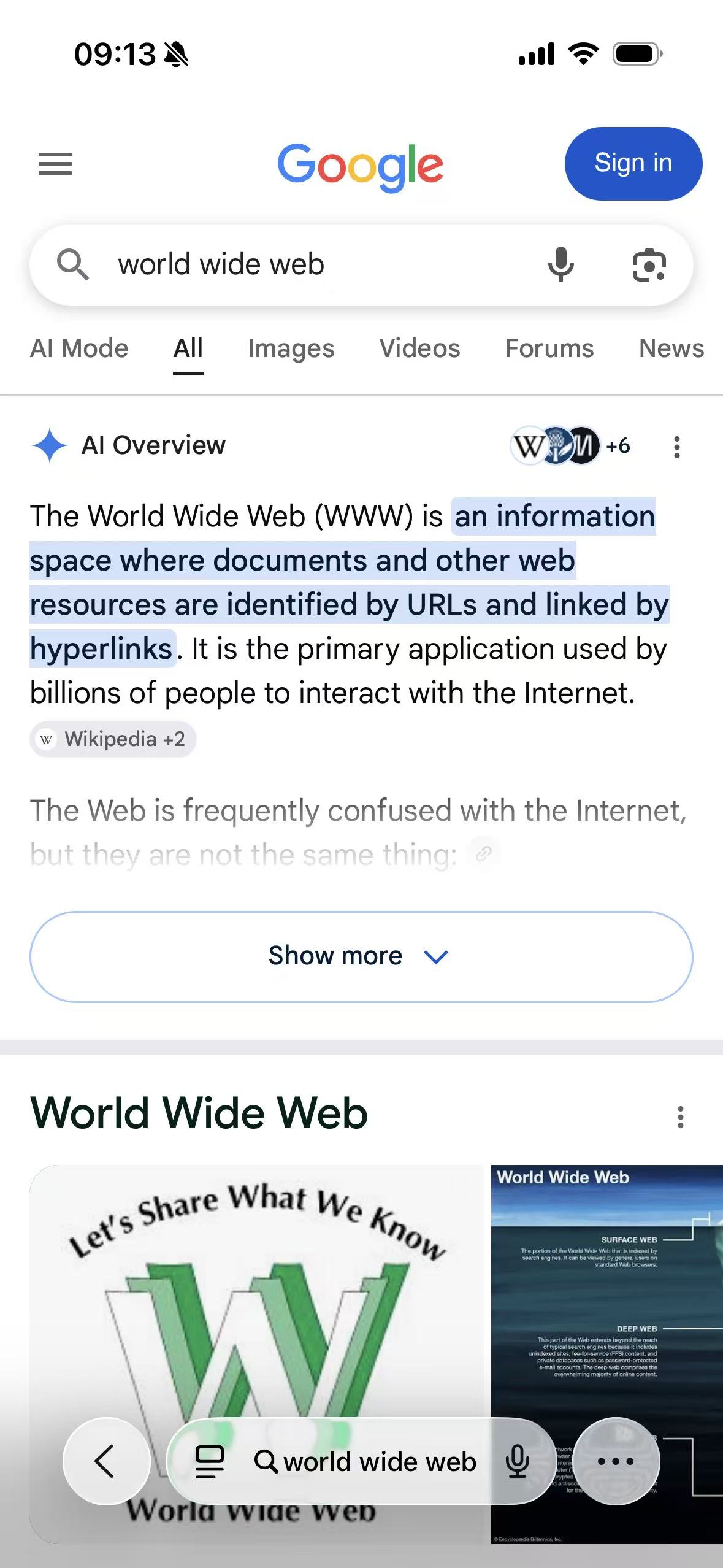
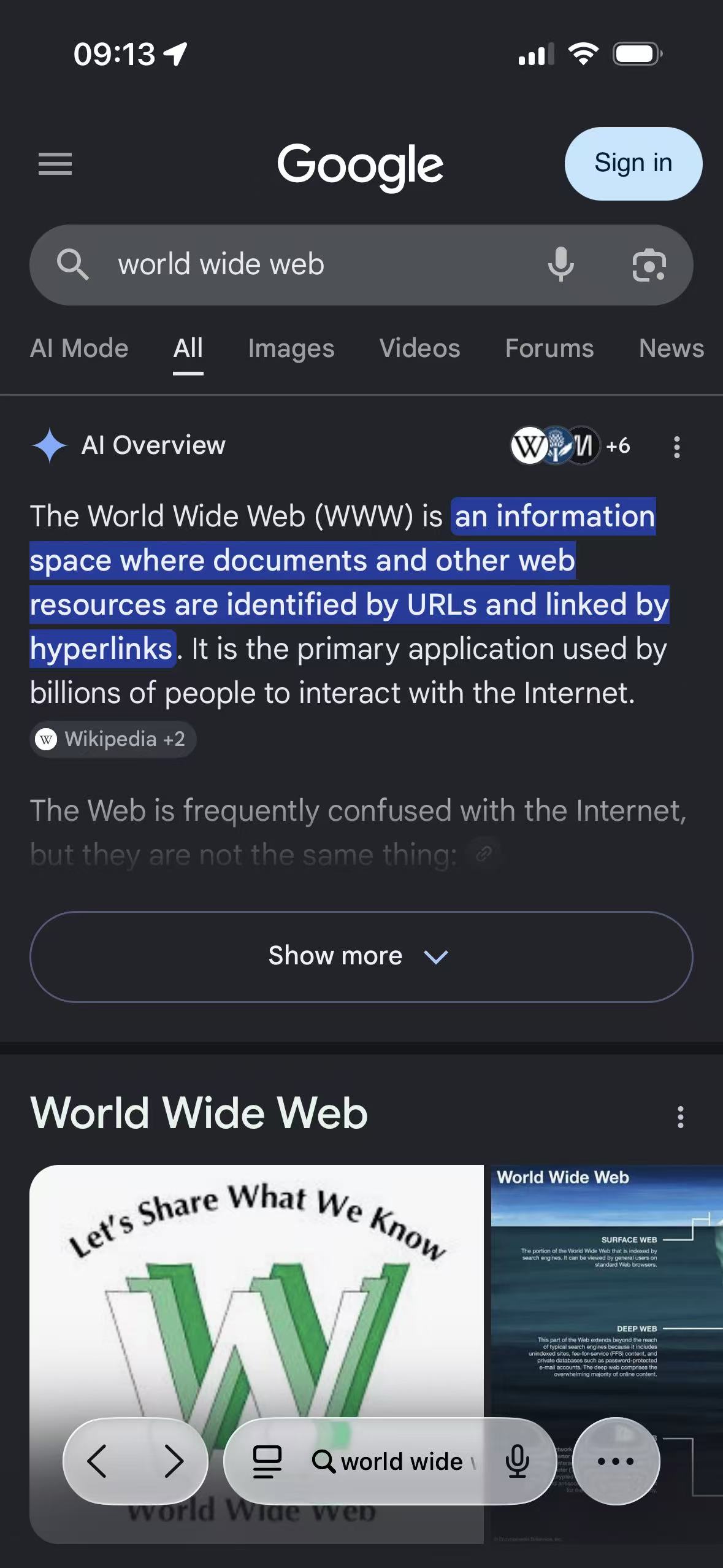
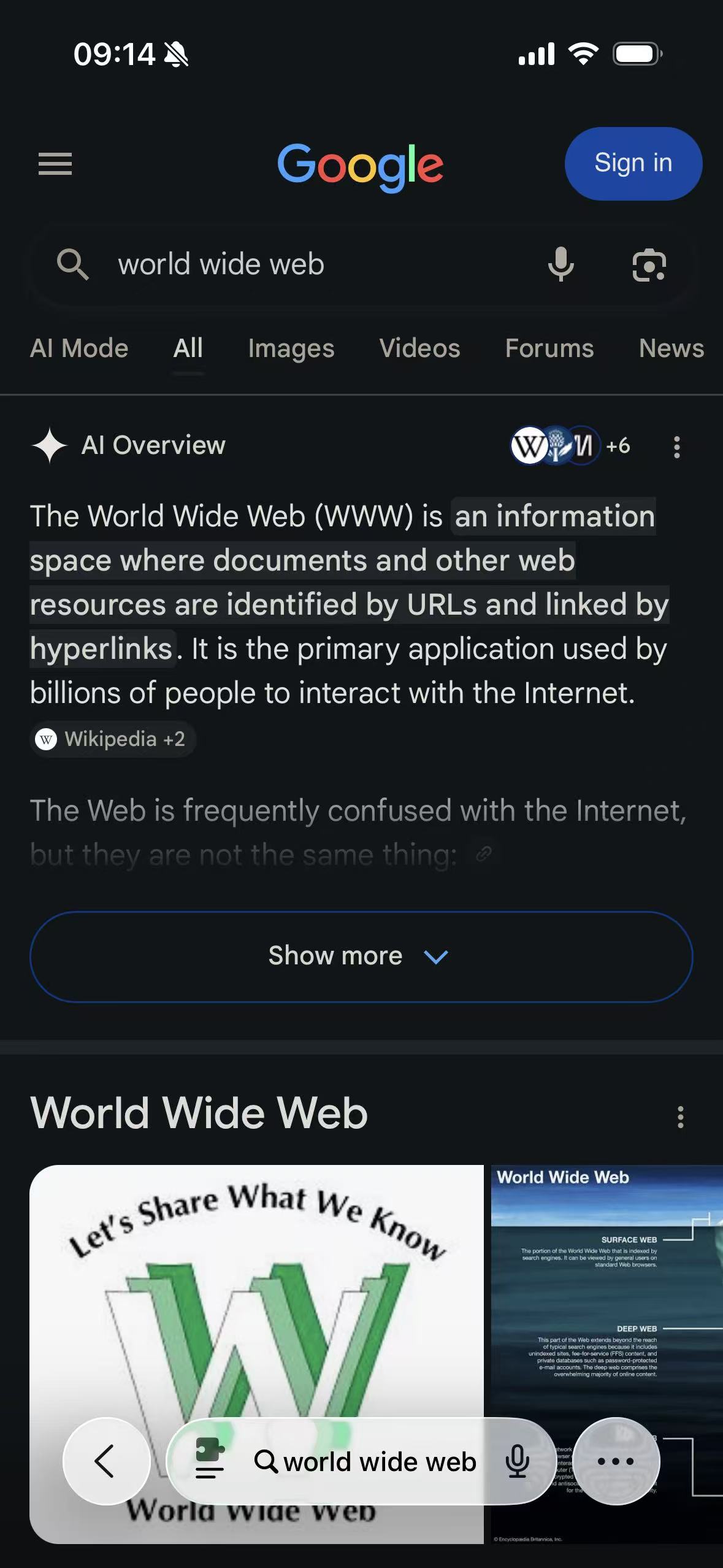
The matched captures use the neutral query World Wide Web in a signed-out Safari session. This result is useful because the opening screen combines the search controls, an AI Overview, selected text, source badges, a disclosure control, and an image-led result. It is a much better test than Google's sparse homepage.
| Test detail | Recorded state |
|---|---|
| Device | iPhone 16 |
| Operating system | iOS 26.5 |
| Browser | Safari |
| Query | World Wide Web |
| Account state | Signed out |
| Compared states | Google Light, Google native Dark, and Google Light adapted by a Safari extension |
| Interaction | The AI Overview's More options panel, including About the source and result feedback |
| Source reviewed | Google Search Help and version 2.7.0 detector and compatibility resources |
| Last verified | July 14, 2026 |
The first group records the same query and result position in all three appearances. The screen is not perfectly static between captures—the status time changes by a minute—but the query, result modules, selected passage, and scroll position are close enough to compare the page treatment directly.
Google Light
Google native Dark
Extension-rendered dark
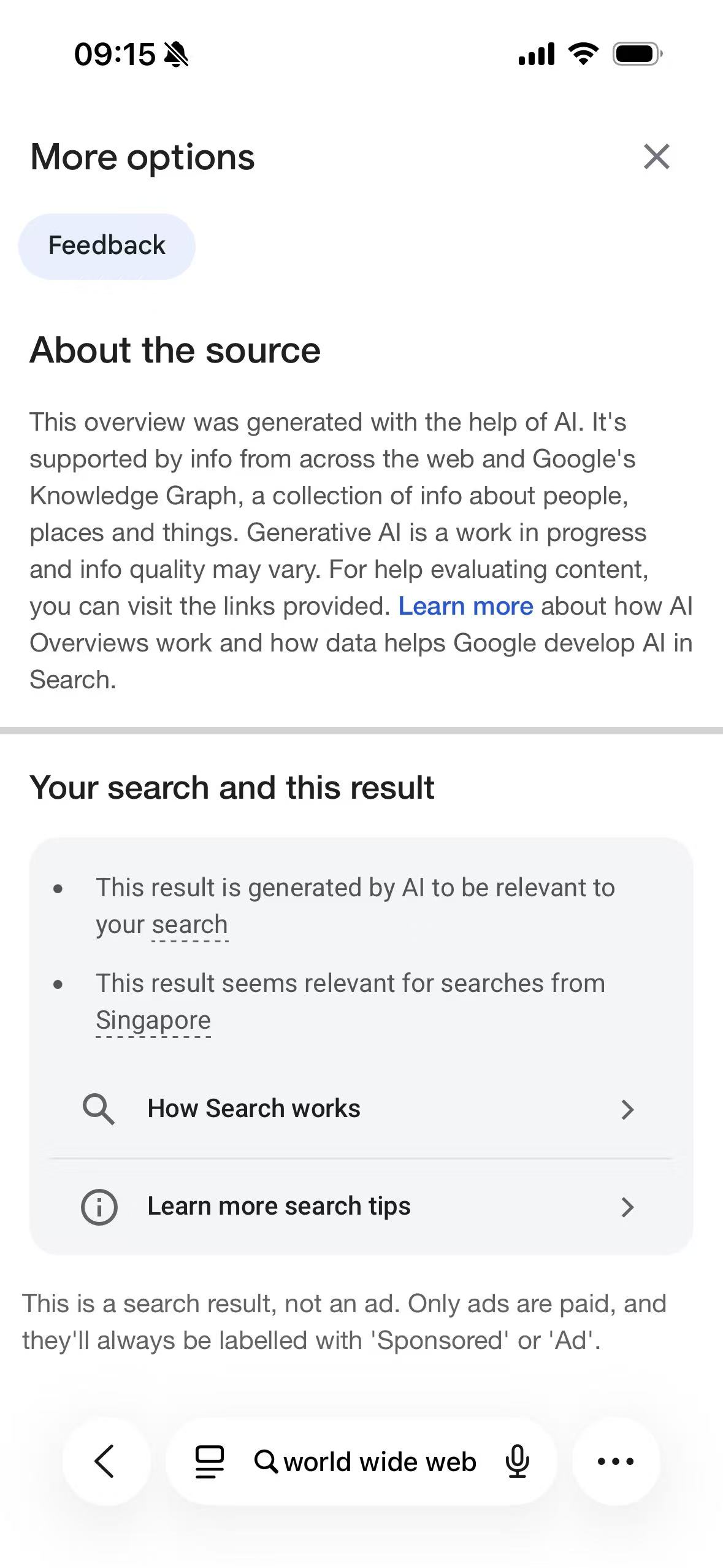
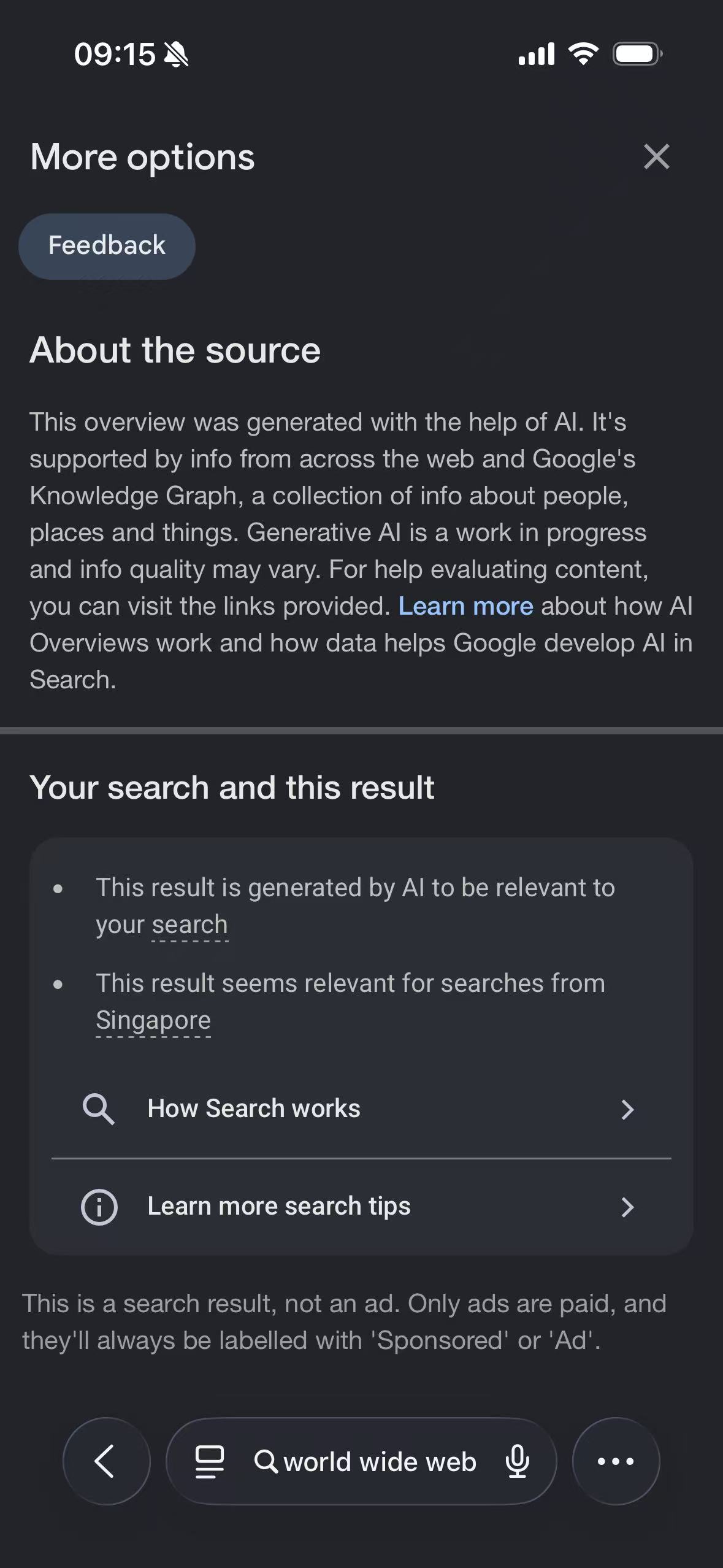
The result page alone does not prove that a theme survives interaction. The second group opens the AI Overview's More options panel, which creates a new full-page surface after the initial results have loaded. It contains large text blocks, a rounded information card, separators, links, icons, and Safari's floating toolbar—a useful mix of elements for checking late-rendered content.
Panel in Light
Panel in native Dark
Panel with extension rendering
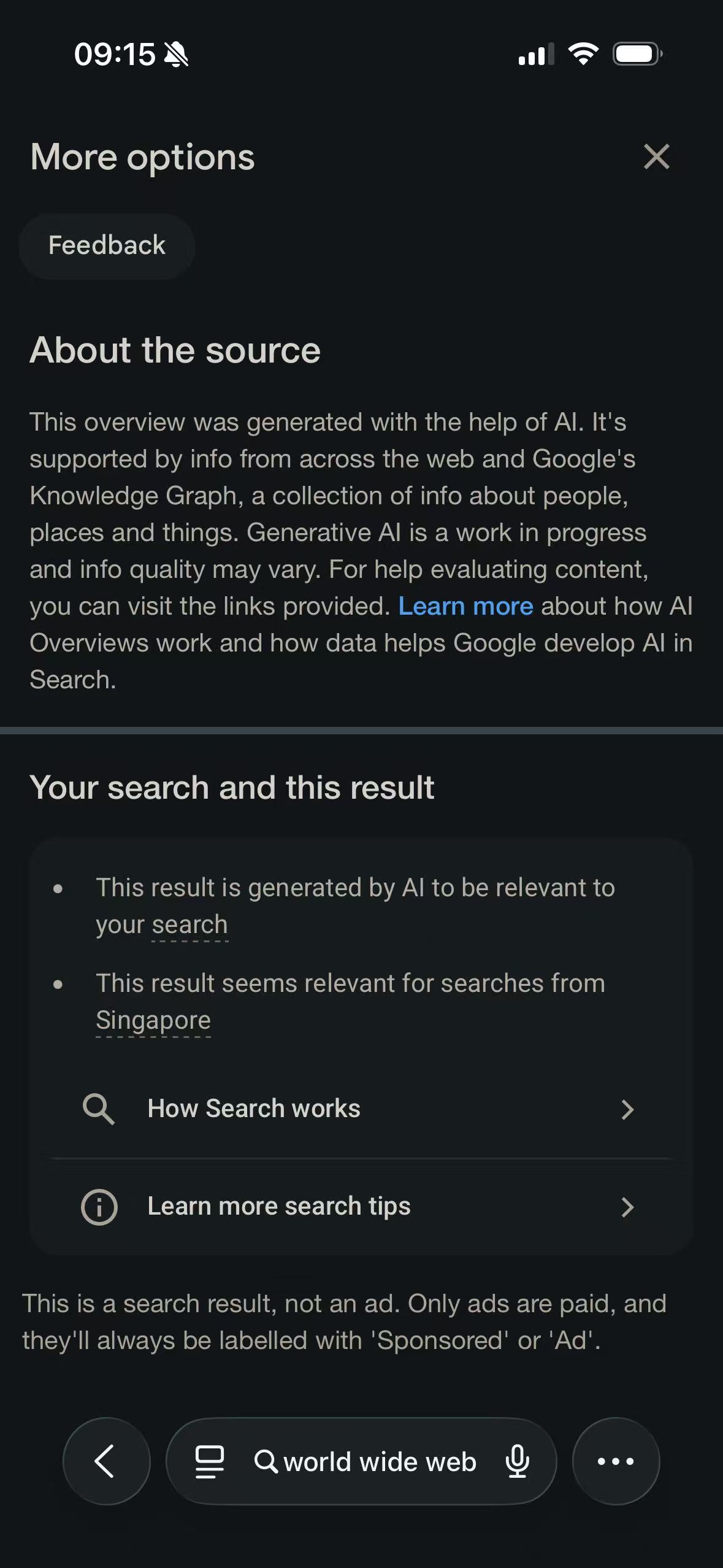
These captures do not stand for every possible Google result. Search modules vary by query, language, region, account state, and experiment. They do show two important things under recorded conditions: the native theme can own the page cleanly, and an extension can adapt both the initial result and a panel inserted later when Google is deliberately left in Light.
If Google Search stays light or looks recolored twice
First choose which layer should own the page. For Google’s native appearance, open Search settings and select Dark theme or Device default. If Device default remains light, confirm that iOS is currently in Dark Appearance and reload the results. A signed-out or private session may not carry the same saved choice as a signed-in session.
To use an extension palette, set Google Search to Light, confirm Safari has granted the extension access to the Google domain in the address bar, and inspect its per-site setting. If Google native Dark is active and respect-site-dark is enabled, the extension doing nothing is expected.
If only one result block is wrong, describe the block rather than “Google”: knowledge panel, image pack, map preview, calculator, dictionary, shopping result, expanded question, search suggestions, or account menu. Also record the query and whether the problem appeared on first load or after interaction. That detail is usually the difference between a useful compatibility report and a screenshot that cannot be reproduced.
The Safari permission steps are in How to Enable Dark Mode for Websites in Safari. For most readers, Google’s native Dark or Device default is the sensible first option. An extension is useful when a different palette or consistent per-site control is wanted, while Search’s own dark result should remain in control when it is already doing the job.