Turning on Dark Mode on an iPhone or iPad darkens Safari itself, but it does not force every website to change. A site only becomes dark if it has its own dark theme or a Safari extension is allowed to restyle it. Start with the website’s theme when one exists. For bright sites that do not offer a useful dark mode, enable a Safari dark mode extension and give it access to the current website.
The quickest way to make Safari websites dark
Follow these steps in order. They separate the three settings that are often mistaken for one switch.
- Open Settings → Display & Brightness and choose Dark. This changes the iPhone or iPad interface and lets compatible websites follow the system appearance.
- Check the website’s own menu for Appearance, Theme, Dark, or System. Use that option if the result is complete and readable.
- If the site remains bright, install a Safari dark mode extension from the App Store.
- Open Settings → Apps → Safari → Extensions, choose the extension, and turn on Allow Extension.
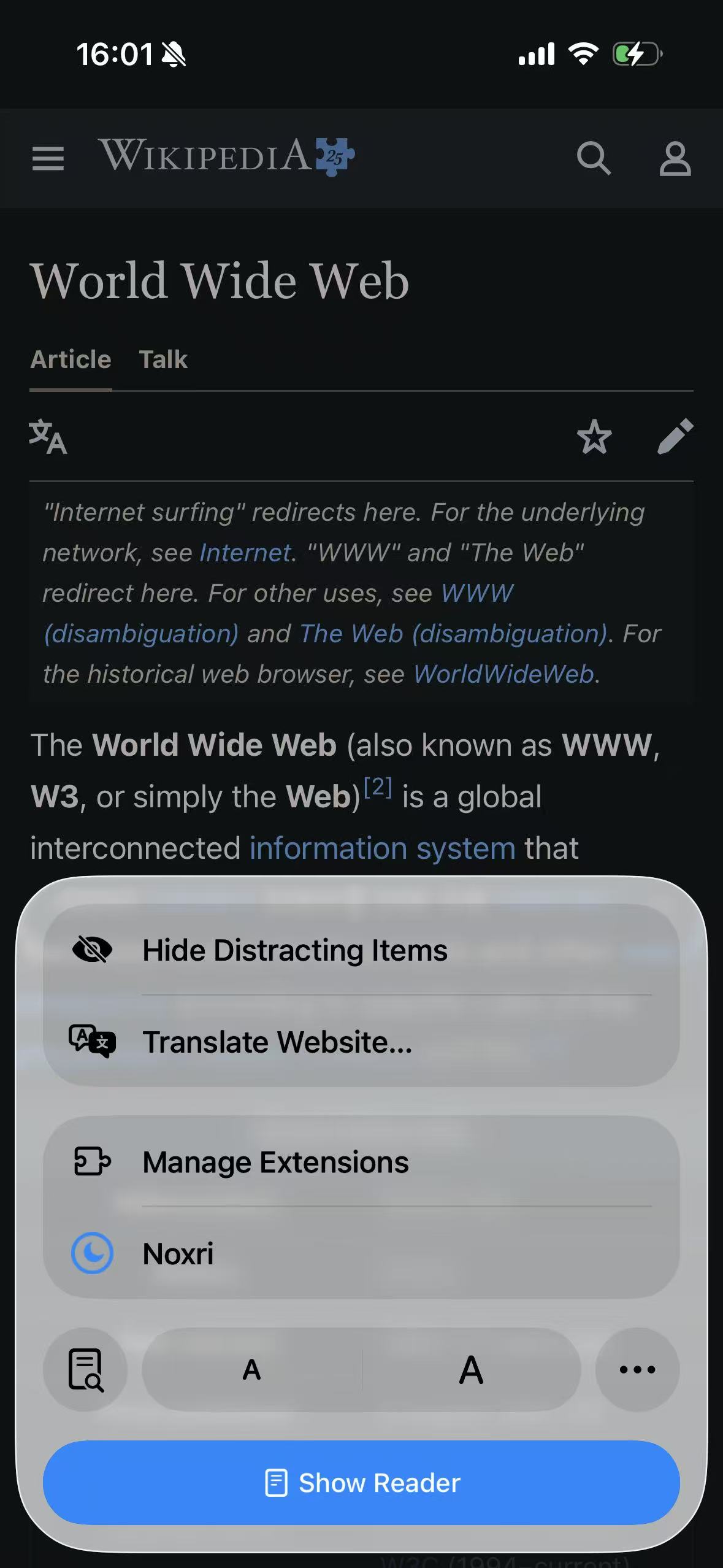
- Return to Safari, open the Page Menu beside the address, tap Manage Extensions, and make sure the extension is on for that website.
- Reload the page.
Apple documents both extension controls in its current iPhone Safari extension guide. If you use Safari profiles, the extension also needs to be enabled in each profile where you want it to run.
Why iPhone Dark Mode does not change every web page
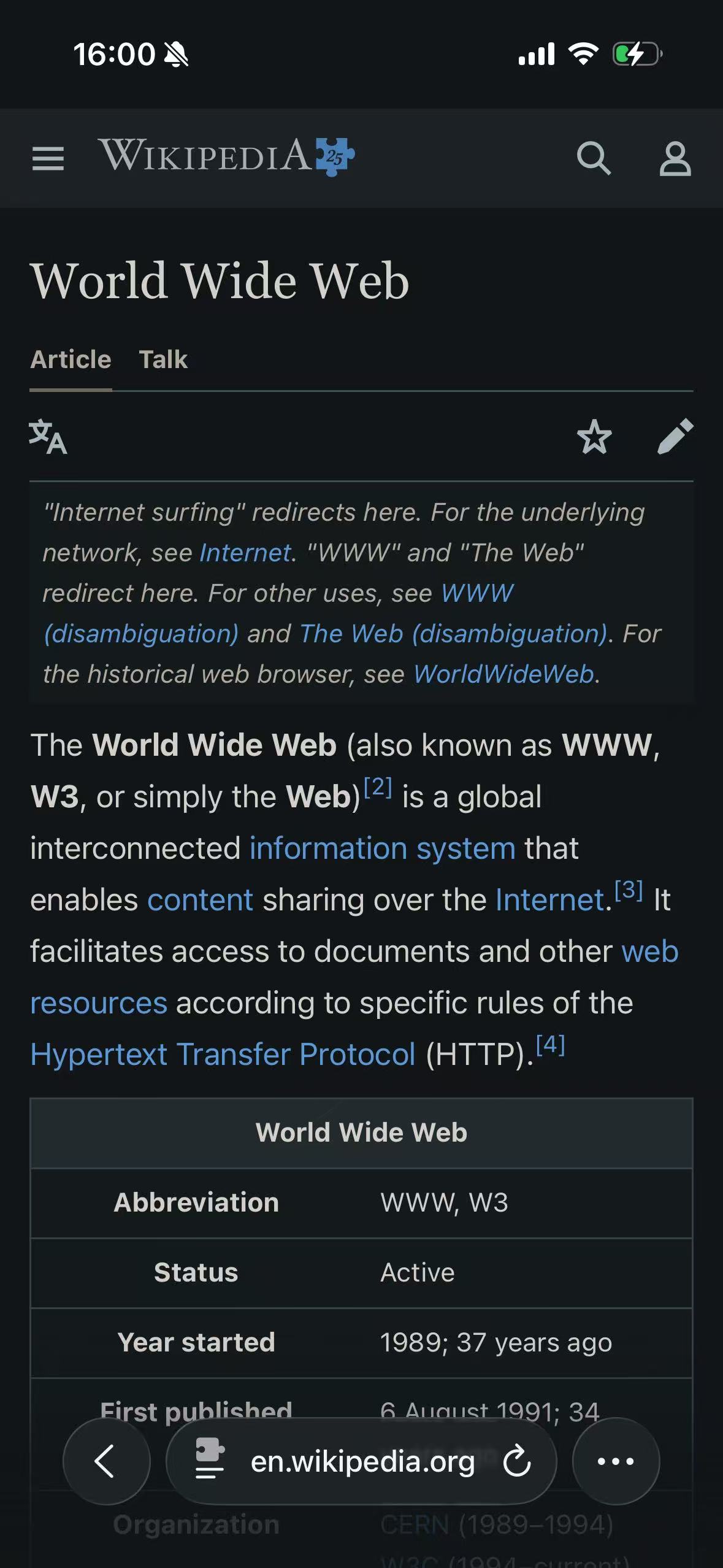
Safari’s interface and the page inside it are separate layers. System Dark Mode can change browser controls, menus, the keyboard, and other iOS surfaces. It also reports a dark appearance preference to websites. The website still decides whether to use that signal.
Web developers can respond with CSS such as prefers-color-scheme and color-scheme. When they do, the site supplies its own dark colors, images, form controls, and component states. When they do not, Safari leaves the page as designed. WebKit made that choice deliberately: silently changing colors on arbitrary pages would break sites that assume a white background. The reasoning is described in Dark Mode Support in WebKit.
You can therefore see a dark Safari toolbar around a white website without anything being misconfigured.
Use the website’s own dark theme first
A native theme has one advantage no extension can fully reproduce: the site knows what its colors mean. It can provide a separate logo, redraw a chart, preserve a product photograph, and coordinate menus, dialogs, and checkout screens.
Look for the setting in the account menu, appearance preferences, reading controls, or footer. A System option usually means “follow the device appearance.” It does not ask Safari to invent a theme.
Keep the native theme if it covers the pages you use. An extension becomes useful when the site has no dark mode, its dark mode covers only part of the service, or you want a different reading palette. For a closer look at where each option works, see Safari Dark Mode on iPhone: What Works and What Does Not.
Enable a dark mode extension on iPhone or iPad
Installing the companion app is not enough by itself. Safari extensions begin disabled, and Safari keeps their website access under the user’s control.
Enable the extension in Settings
Open Settings → Apps → Safari → Extensions, select the extension, then turn on Allow Extension. This is the reliable place to confirm that iOS has enabled the extension at all.
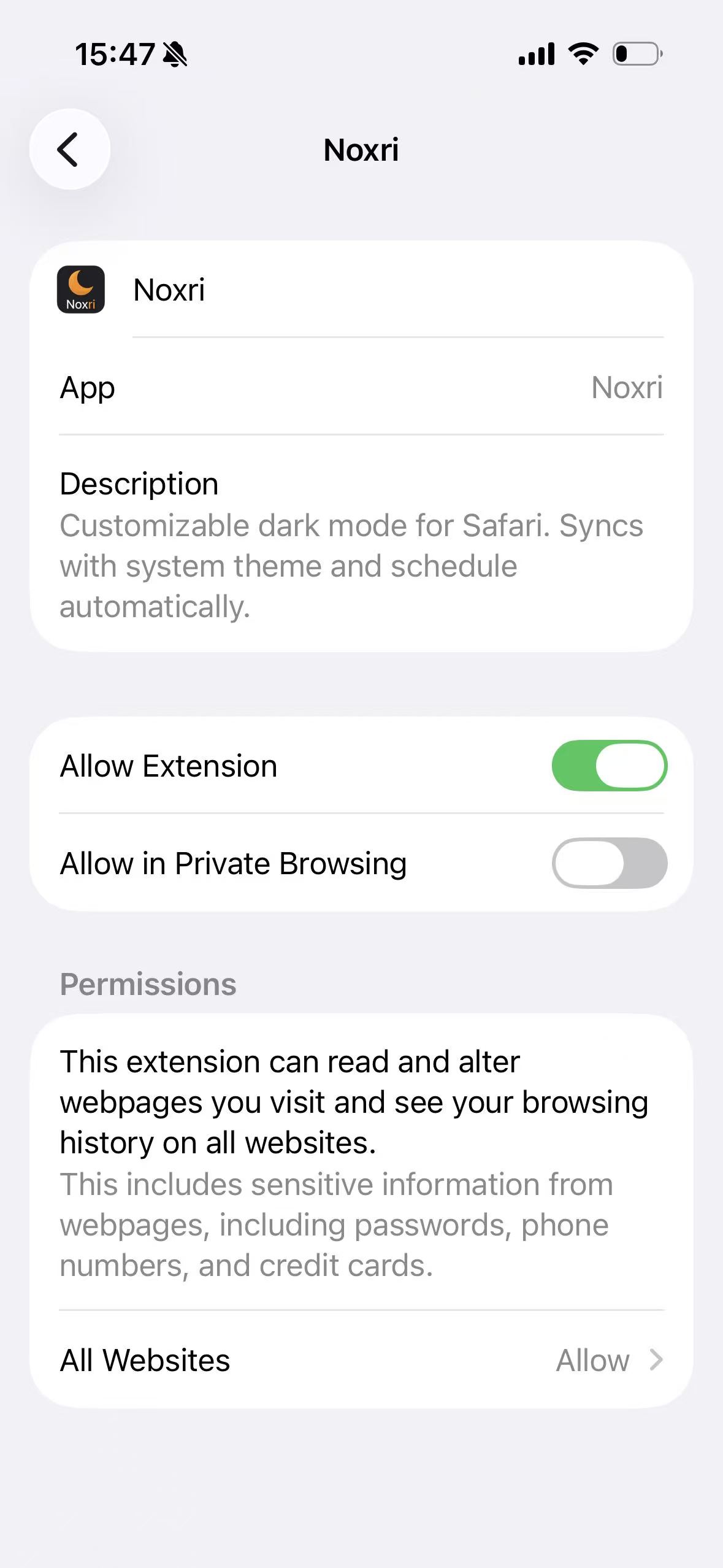
Safari profiles are independent here. If the extension works in Personal but not Work, check the profile switches on the same screen.
Enable it for the current website
Open an ordinary website in Safari. Tap the Page Menu button on the left side of the address field, choose Manage Extensions, and turn on the extension. Safari may ask whether it can access the website. Choose the scope you are comfortable with; the wording and available scope can vary with the iOS version and the extension’s declared permissions.
Safari asks for website access because a page-color extension has to read the document’s styles and add new styles to that page. Apple describes the permission model in its Safari web extension documentation.
Reload once after changing permission. A tab that was already open may have been loaded before the extension was allowed to enter it.
A sensible first extension setup
There is no need to configure every domain before browsing. Enable the extension with the Safari steps above, then start with its default theme and behavior.
Start with the Classic Midnight theme and let the extension follow the system appearance. Native-theme detection normally leaves sites that already present a dark theme alone. When one website needs different treatment, change that site rather than replacing the global setup.
The app currently includes ten themes and supports system-based or time-based automation. Site settings can choose another theme, force adaptation when a site’s own dark mode is incomplete, or pause adaptation where original colors matter. Those controls are useful after the basic extension path is working; they are not prerequisites for the first dark page.
If the website is still bright
Test on a normal article page in Safari, then work through the checks below. Changing several settings at once makes the cause harder to see.
Make sure the page is really open in Safari
Links inside social, mail, and news apps often open in an embedded browser. That view may not load Safari extensions. Use Open in Safari before troubleshooting the extension.
Recheck both extension switches
Confirm Allow Extension in Settings, then confirm the extension under Safari’s Manage Extensions menu for the current site. If Safari displays an access prompt, grant the site access and reload.
Check the Safari profile
An extension enabled for one profile may be off in another. The profile name appears in Safari’s tab view. Enable the extension for the profile that owns the failing tab.
Remove a site-specific exception
A site can be paused, forced on, or assigned a theme independently of the global setting. Remove the site override if you want it to inherit the default behavior again.
Try a different, ordinary website
Safari does not expose every surface to extensions. Browser settings, some start or system pages, and other protected contexts cannot be treated like a public website. If the extension works on an article but not a Safari-owned page, permission is probably not the problem.
If only part of the page stays bright
A bright panel does not necessarily mean the extension stopped. Payment forms, document viewers, comments, video players, and sign-in widgets can live in separate frames with their own access boundary. Maps, games, charts, and editors may paint pixels into a canvas rather than expose normal CSS colors.
Report the exact URL and the part that remains bright. “The checkout iframe on this product page” is useful; “the whole domain is broken” often is not. The support checklist lists the device and page details that make a compatibility report reproducible.
If dark mode makes the page harder to use
Pause before forcing a stronger theme. A page can be dark and still be wrong: secondary text may lose contrast, selected states may disappear, or a product image may no longer show its original color.
Try the website’s own theme, switch from pure black to a neutral gray, or remove the site override. Pause the extension for design tools, medical images, maps, charts, and other work where color carries meaning. Consistency is not worth hiding information.
A dynamic renderer has more control over text, surfaces, borders, and media than one flat screen inversion, but no renderer can guarantee every third-party page. How Safari dark mode extensions work explains the rendering boundary in more detail.