Safari on iPhone has Dark Mode, but it does not have a built-in switch that redesigns every website. Dark Appearance changes Safari’s controls and tells websites that you prefer a dark color scheme. A website can follow that preference, ignore it, or provide its own separate setting. A Safari extension can adapt many of the sites left bright, provided Safari grants access to the page.
If you only need the setup path, use How to Enable Dark Mode for Websites in Safari. The rest of this guide deals with where each approach stops working.
What Safari Dark Mode changes on iPhone
Turn on Dark Mode in Settings → Display & Brightness, or hold the brightness control in Control Center and tap the appearance button. Safari’s menus, sheets, controls, keyboard, and other system-owned surfaces can now use the dark appearance.
The web page is a separate document. Safari reports the user’s preference through the Web platform, most commonly through the prefers-color-scheme media query. A site that has written dark styles can respond. A site with only a light design will usually stay light.
WebKit does not auto-darken arbitrary pages because many of them make assumptions about background, text, image, and control colors. Changing only some of those values can make the result unreadable. WebKit’s dark mode implementation notes explain why websites must opt in.
So this combination is normal:
- Safari toolbar: dark.
- Keyboard and menus: dark.
- Website: white.
It means the system appearance is working and the site has not followed it.
Three ways a website can become dark
| Method | Who supplies the colors | Best use | Main limitation |
|---|---|---|---|
| iPhone Dark Appearance | iOS and Safari | Browser interface and websites that follow the system | Does not redesign a light-only website |
| Website dark theme | The website | Complete, site-aware treatment of its own UI and media | Only works where the site has implemented it |
| Safari dark mode extension | The extension | Bright sites without a useful native theme | Requires page access and cannot safely transform every kind of content |
On an iPhone, these methods can be used in sequence: iOS sets the appearance preference, a site handles its own dark mode when it has one, and an extension can cover bright pages left over.
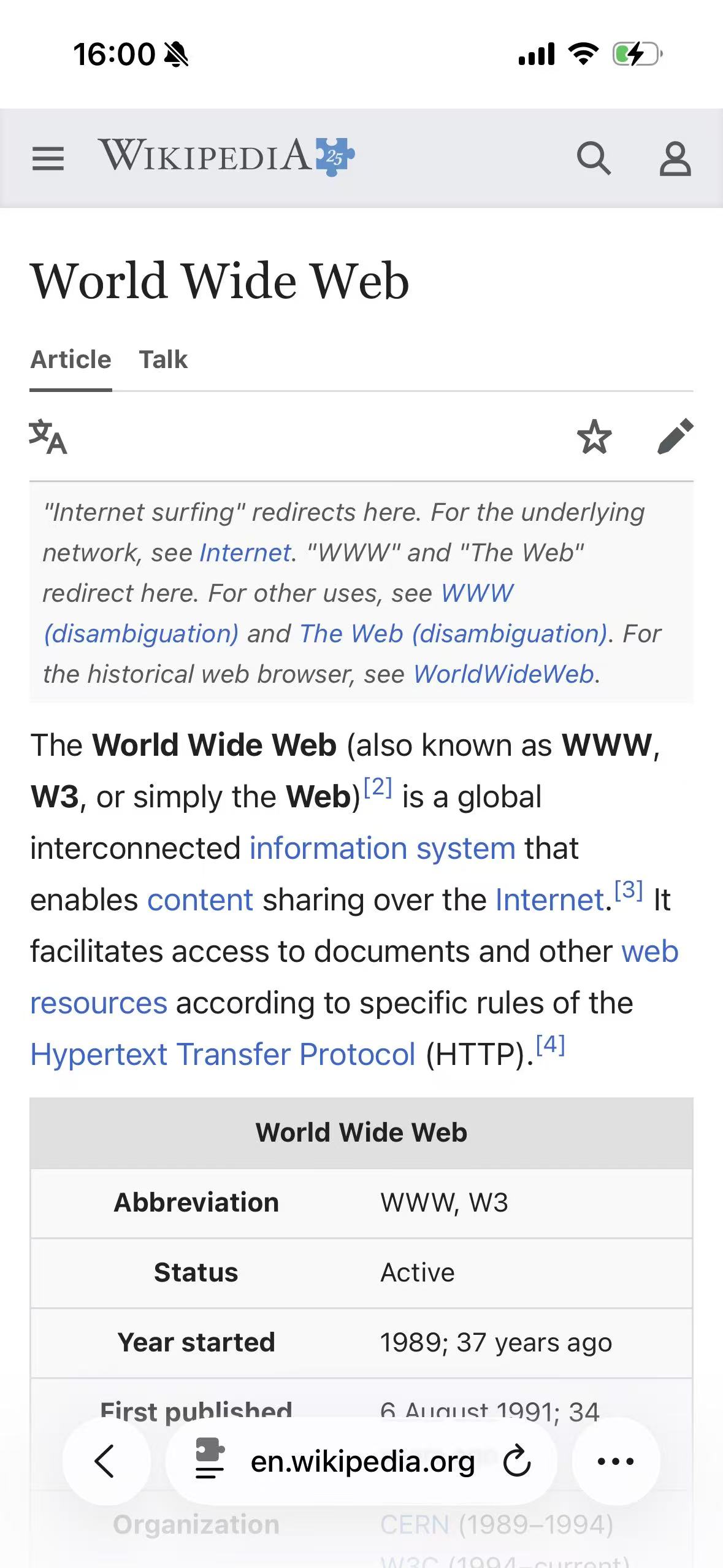
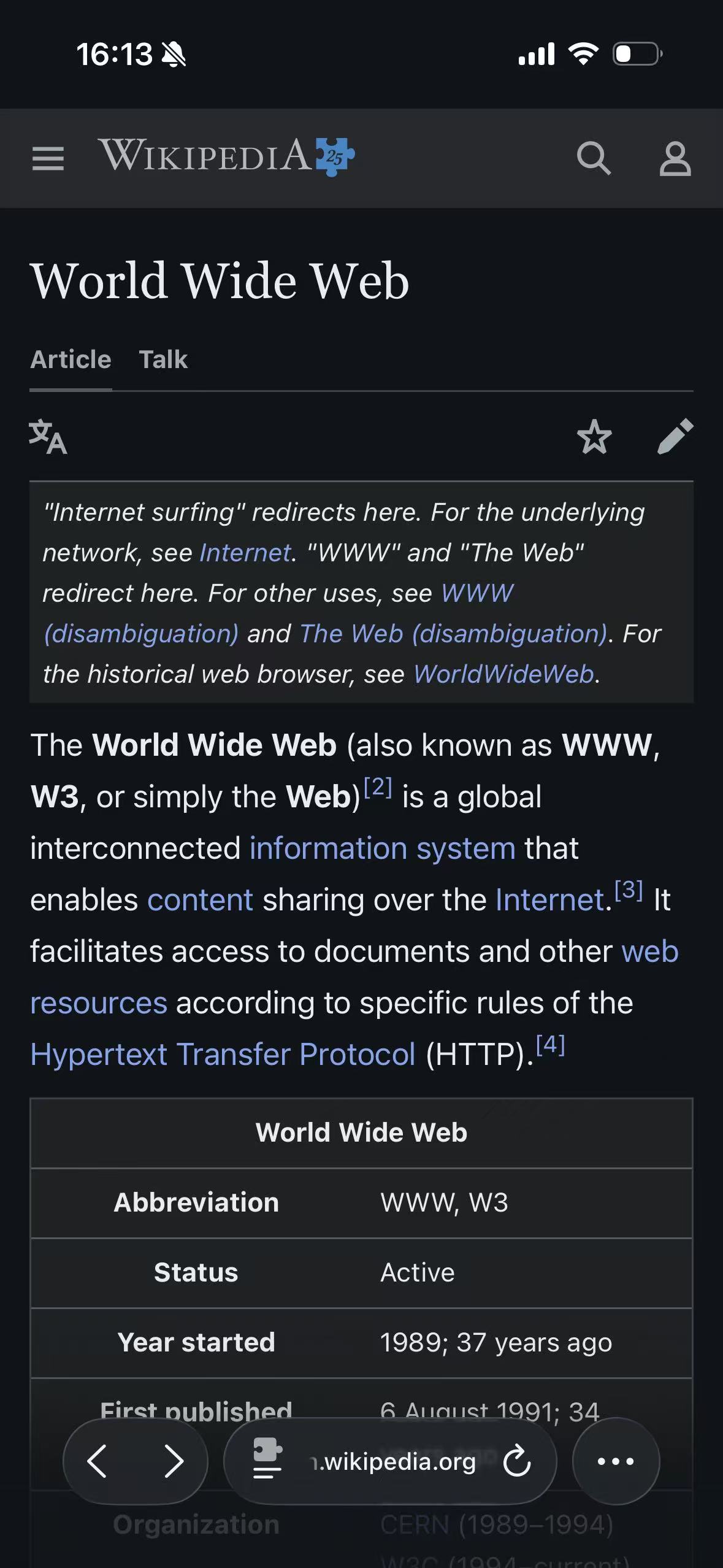
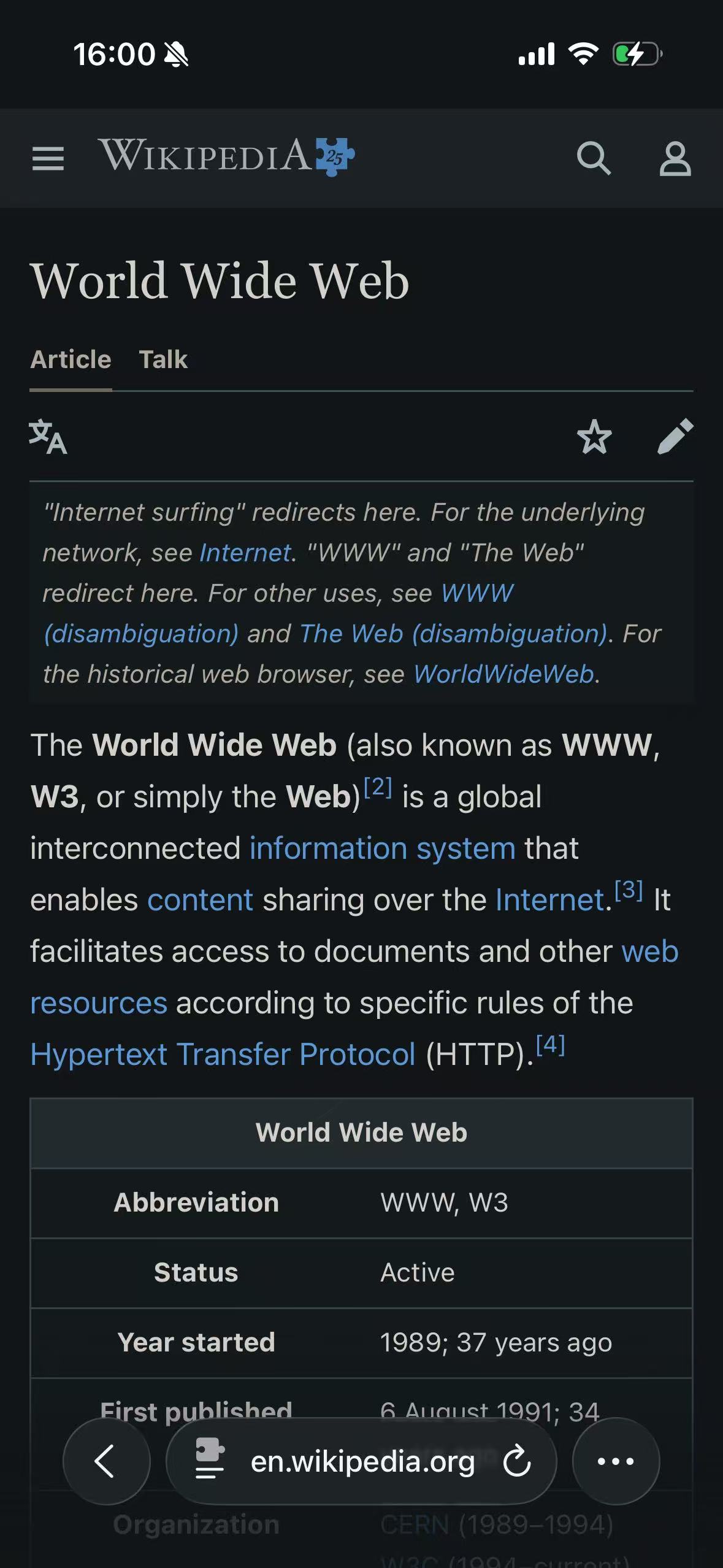
For the screenshots below, we kept iPhone Dark Appearance on and changed one page-level choice at a time. Wikipedia stayed light while its own appearance was set to Light. Selecting Wikipedia's Dark appearance produced the middle result. We then returned the site to Light and enabled the extension for the third result. A finished screenshot can look similar in the last two cases, but it does not tell you who supplied the colors.
Wikipedia Light
Wikipedia native Dark
Classic Midnight
When the website’s theme is the best option
A native dark theme has direct knowledge of the product. The site can redraw charts, choose dark-specific logos, protect product photos, and test every selected, hover, focus, error, and disabled state. It can also coordinate pages that an extension may not reach, such as an embedded sign-in or payment flow.
Use the site theme when it is complete and comfortable. Check more than the home page: open navigation, account settings, search results, dialogs, forms, and the pages where you actually spend time.
Some sites expose Light, Dark, and System. System means that the site follows the device’s reported preference. It does not turn Safari into a color-conversion engine.
Native support can still be patchy. A publication may darken articles but not subscriptions; a store may darken browsing but leave checkout white. That is a site boundary, not a contradiction in Safari.
When a Safari dark mode extension helps
A Safari web extension can run code inside an allowed page. It can inspect CSS colors and generate overrides for backgrounds, text, links, borders, form controls, gradients, and other visible components. Apple’s Safari Extensions overview describes how web extensions combine familiar web technology with an app distributed through the App Store.
On a conventional page, an extension can usually handle:
- Page and card backgrounds.
- Body text, muted text, and links.
- Borders, dividers, and shadows.
- Standard form fields and buttons.
- CSS variables shared by many components.
- New elements inserted after navigation or scrolling.
Media needs separate care. A photograph should normally keep its colors; a simple icon may need to follow the surrounding text; a diagram can contain both. A dynamic renderer classifies and modifies page colors instead of inverting the final screen as one bitmap. The difference is covered in CSS Filter vs Dynamic Theme.
What an extension cannot promise
The limit is not just rendering quality. Some content sits outside the document the extension can safely inspect or change.
Safari-owned and protected pages
Safari does not grant ordinary website access to all browser and system pages. If the extension cannot enter a page, it cannot style it. A start page, settings surface, security-sensitive page, or another protected context should not be used as the first extension test.
Embedded content with another origin
A page may contain a payment form, video player, document viewer, advertisement, comment system, or login flow served by another domain. That frame is a separate document and can have its own permission boundary. The parent page turning dark says nothing about whether the embedded document can be changed.
Canvas, maps, and bitmap interfaces
Many editors, games, charts, maps, and remote desktop tools draw pixels into a canvas. CSS does not describe each visible color after those pixels have been painted. Applying a blanket filter may change meaning as easily as appearance.
Color-critical work
Product color comparisons, medical images, design reviews, financial charts, and status dashboards can encode information in hue. A generated dark theme may look polished while making the task less accurate. Keep the original presentation or pause the extension on those pages.
Rapidly changing web apps
Modern applications replace views without a full page load, attach shadow roots, insert style sheets, and update CSS variables at runtime. A renderer has to follow those changes without making scrolling or interaction heavy. A site update can also expose a new edge case before the extension knows about it.
What an app-backed extension adds beyond iPhone Dark Mode
An app-backed implementation can pair global preferences, themes, automation, and site configuration with a Safari web extension that uses the synchronized settings while it renders the open page.
Its current controls include ten built-in themes, system- or time-based automation, per-site mode and theme choices, temporary pause, and native dark-theme detection. Settings can be applied to a page, subdomain, or root domain when a narrower or broader rule is needed.
The renderer analyzes CSS colors, variables, gradients, backgrounds, text, borders, and selected media. It also watches pages that change after initial load. That gives more control than one full-page inversion, but it does not remove Safari permissions, iframe boundaries, canvas pixels, or the meaning carried by original colors.
Why a white flash can appear before the theme
Safari can paint the website before a dynamic renderer finishes reading its style sheets and generating overrides. If the first paint is white, the delay is visible as a flash.
An extension can reduce this with an early fallback background, cached settings, fast configuration transfer, and incremental rendering. It cannot simply hide every page until analysis finishes: doing so would trade a brief flash for blocked content and slower interaction.
Judge the result during ordinary navigation, not from a single finished screenshot. Open a cold tab, follow an internal link, go back, restore a tab after switching apps, and watch what happens when more content loads on scroll.
Why one part of a page may remain white
If the article and navigation are dark but one panel is not, the extension is probably running. The remaining surface may be an iframe, a shadow-DOM component, a background image that resembles a card, a late-loaded viewer, or a control intentionally left unchanged.
The safest fix starts with the smallest failing element. Record the exact URL, open the component, and note what action made it appear. Broad rules that force every embedded surface dark can fix one panel and damage five others.
The support checklist explains which device, page, and reproduction details are useful in a compatibility report.
How to decide whether a result is good
Do a short task-based test:
- Read body text and distinguish headings, links, and muted metadata.
- Open the navigation and a modal or popover.
- Use a normal form and check selected, disabled, focus, and error states.
- View photographs, logos, video, or a chart.
- Navigate away and back, then restore the tab after using another app.
A strong result keeps information recognizable, not merely dark. If the site’s native theme handles the work better, use it. If one page needs original colors, pause there without changing every other site.
For night reading, brightness and text size matter alongside the palette. Does Dark Mode Reduce Eye Strain? separates the comfort benefits from the claims dark mode cannot support.