
Amazon product pages are a harder dark-mode problem than reading pages. Text and backgrounds still need comfortable contrast, but shoppers also rely on product color, selected variants, prices, stock warnings, ratings, and delivery information. A renderer that makes the page look dark while changing any of those signals has made the page less trustworthy.
The practical rule is simple: adapt the interface, not the merchandise. Product photos and swatches should keep their source colors. Page surfaces, controls, borders, and text can move into a dark palette around them.
The Amazon field test
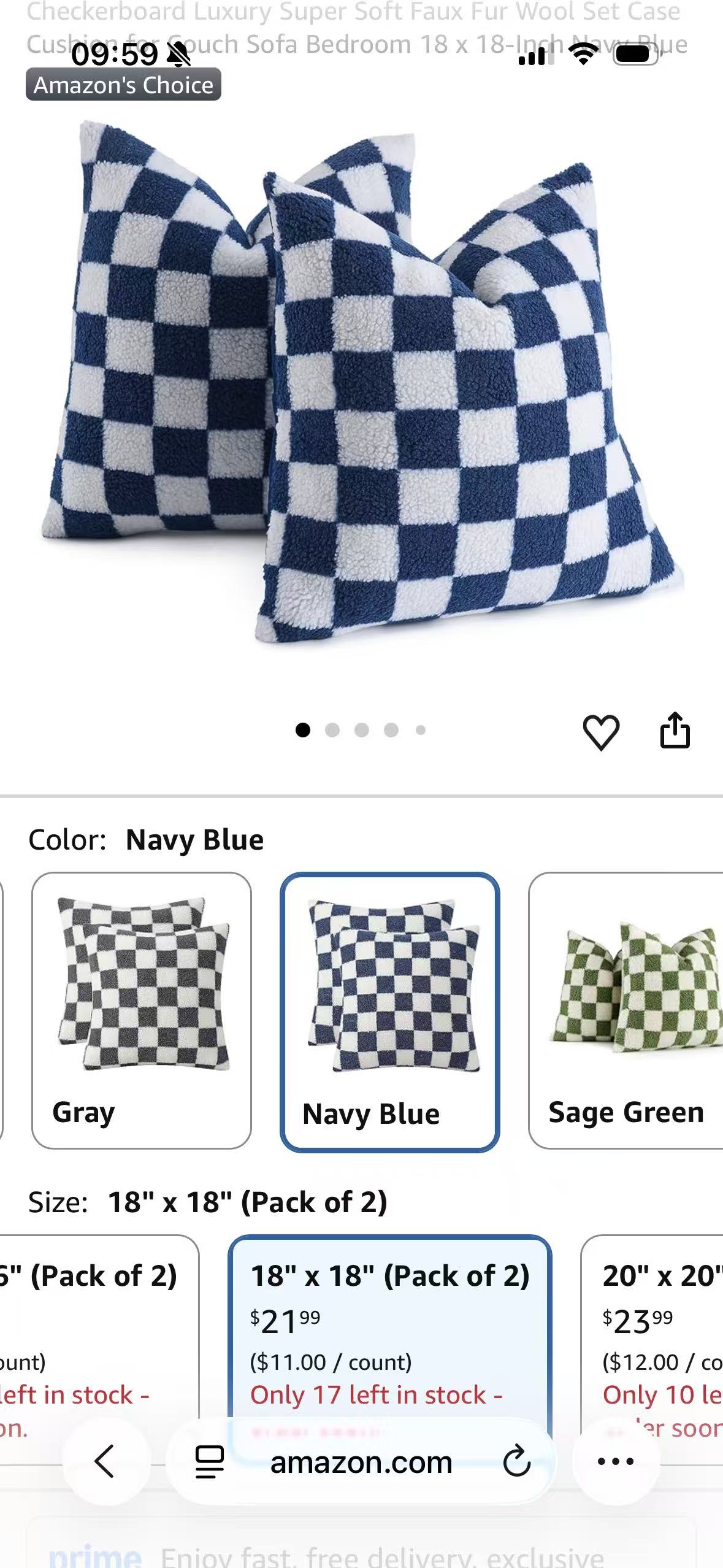
This test uses a public amazon.com product page for checkerboard pillow covers. The selected option is Navy Blue, which makes unintended color changes easy to spot. The same page also presents white-backed product photos, gray and green alternatives, a blue selection outline, price text, and a red stock notice in one viewport.
Amazon Light is compared with the same light page adapted by a Safari dark mode extension. No Amazon-owned dark appearance was used in this pass, so the article does not describe the second image as Amazon native Dark.
| Test detail | Recorded state |
|---|---|
| Device | iPhone 16 |
| Operating system | iOS 26.5 |
| Browser | Safari |
| Website surface | Public amazon.com mobile product page and Reviews tab |
| Selected variant | Navy Blue, 18 × 18 inches, pack of two |
| Compared states | Amazon Light and Amazon Light adapted by a Safari dark extension |
| Source reviewed | Version 2.7.0 dynamic and filter compatibility resources |
| Last verified | July 14, 2026 |
Amazon Light
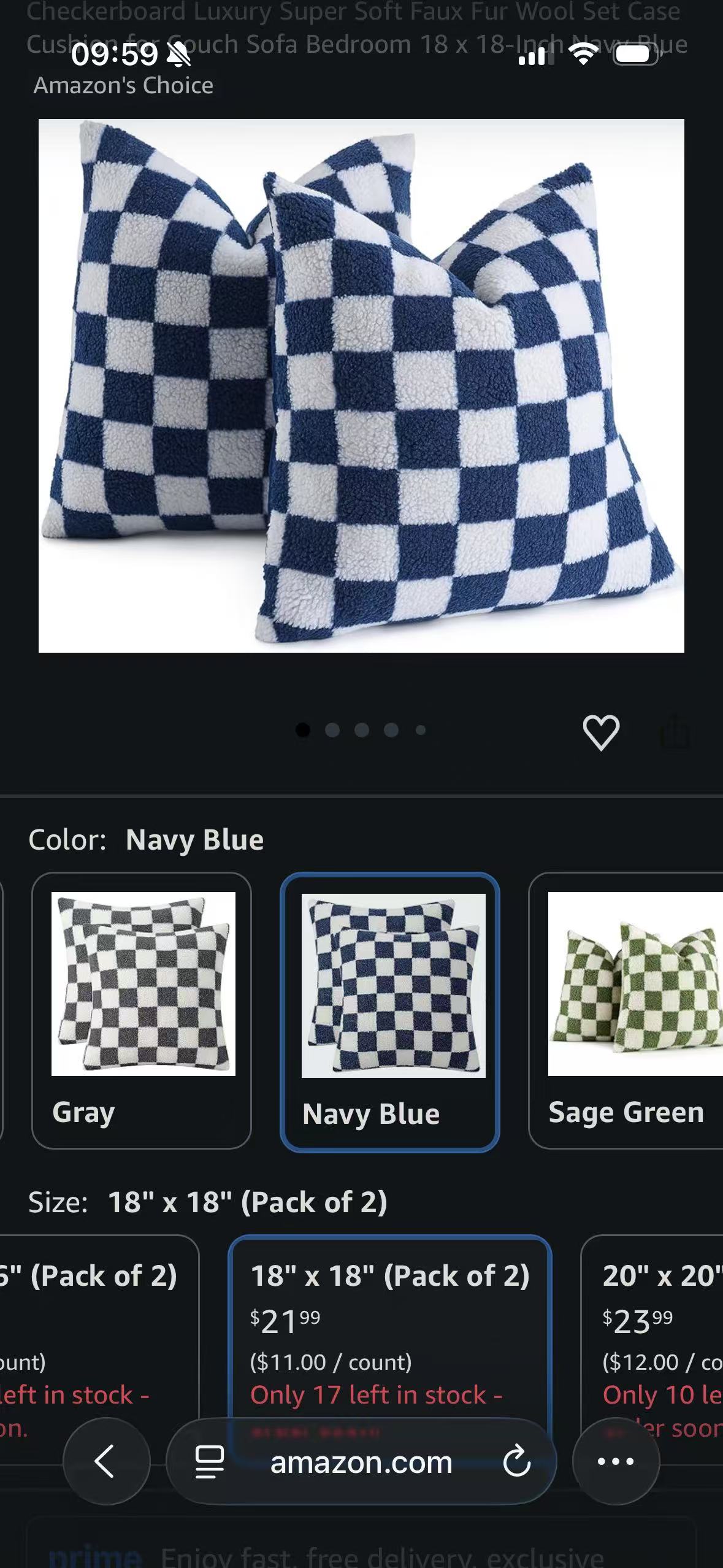
Extension-rendered dark
Product pages are color-critical
On a news article, a slightly inaccurate border color may be annoying. On a product page, an inaccurate swatch can lead to the wrong purchase. Shopping pages therefore need a firmer boundary between interface color and content color.
The photo and swatches are evidence, not decoration
The large pillow image is mostly white and navy. A page-wide inversion would turn its white background dark and could push the navy squares toward a light or complementary tone. The result might still look polished, but it would no longer show the product Amazon supplied.
In the extension-rendered capture, the page around the photograph becomes dark while the photograph stays on its white canvas. The smaller Gray, Navy Blue, and Sage Green swatches receive the same protection. This is deliberate: product media is preserved as content rather than treated as another page background.
The white rectangles are not a failure to darken the page. They belong to the images. Keeping that boundary visible is more honest than blending product photography into the surrounding theme.
Selection, price, and stock must stay legible
The selected Navy Blue swatch and size option use a blue outline and pale blue fill. Price and inventory states introduce more semantic colors. The dark result needs to retain those distinctions without allowing bright cards to dominate the screen.
This is where a basic inversion often breaks down. It may reverse the selection outline, weaken red stock text, or flatten selected and unselected options into the same surface. A usable renderer maps backgrounds, borders, ordinary text, muted text, links, and status colors as different roles.
The Reviews tab is a second application surface
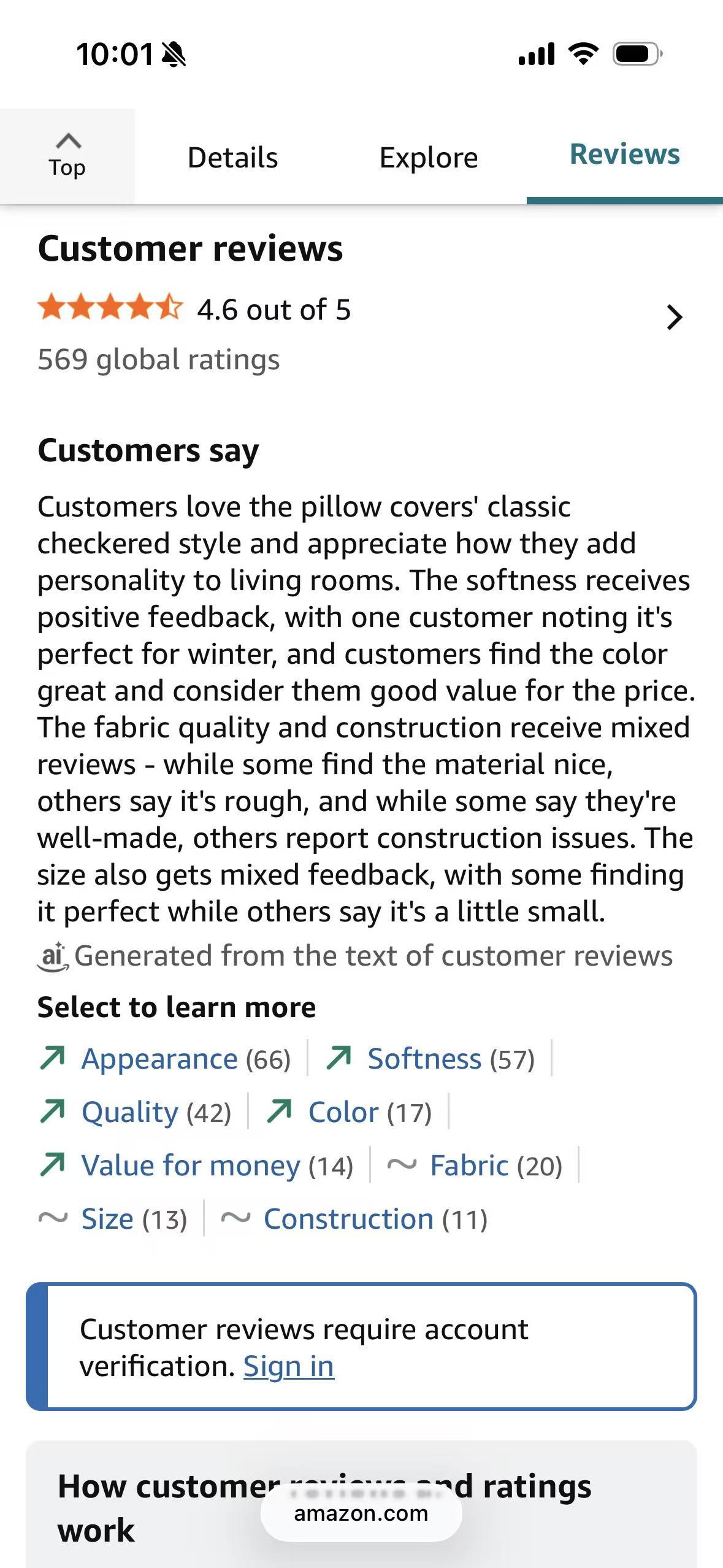
Product media is only one part of Amazon. The Reviews tab replaces it with a dense reading and navigation surface: rating stars, a numerical score, summary text, topic links, directional indicators, an account-verification notice, and a sticky tab row.
The matched review captures are especially useful because the content and position are identical. The orange rating stars and green sentiment arrows retain their roles, link text stays distinguishable from body copy, and the bordered sign-in notice remains a separate component after the background becomes dark.
Reviews in Light
Reviews with extension rendering
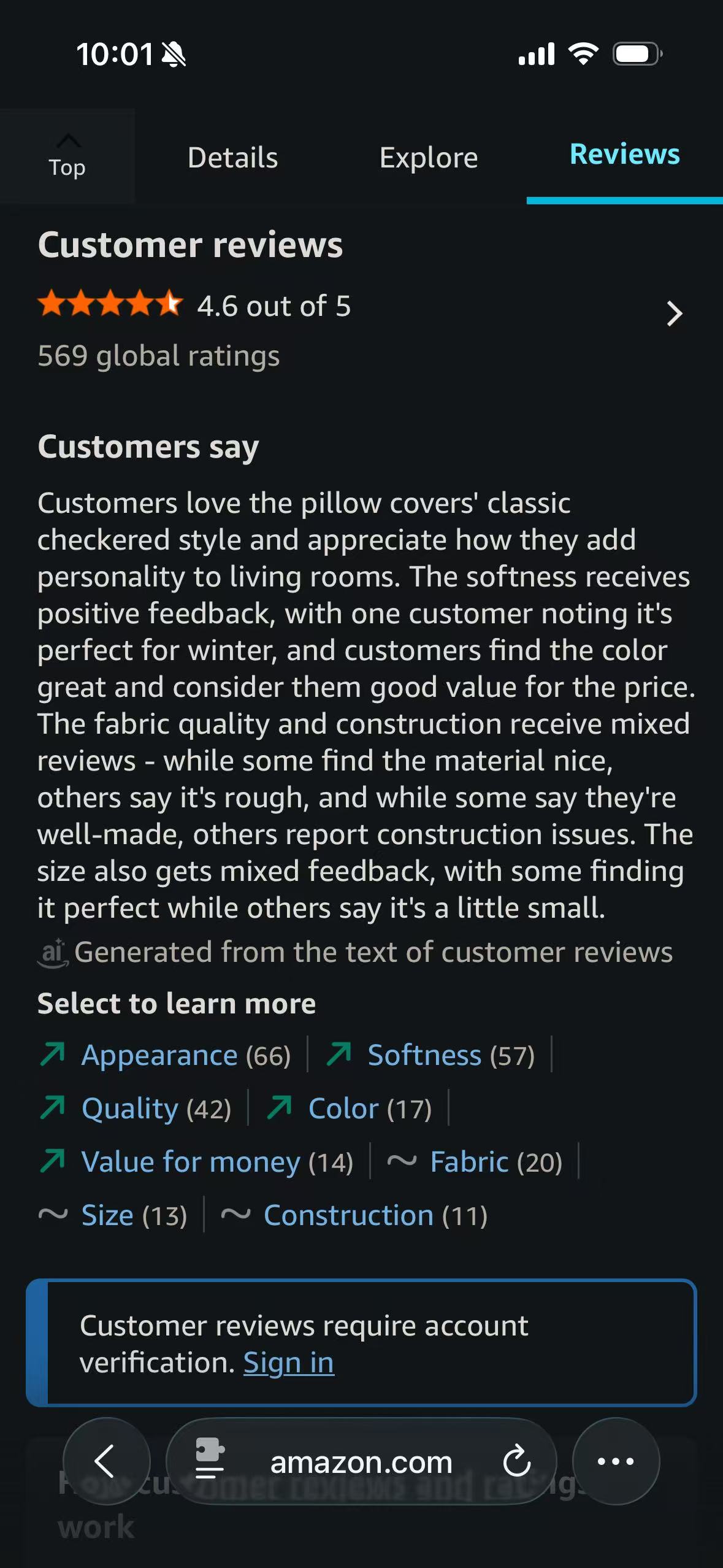
The review summary is content generated by Amazon from customer reviews. For dark-mode testing, its origin matters less than its rendering behavior: it is a long block that can arrive inside a product application with its own labels and topic controls. The extension should observe and adapt that surface without mistaking the colored rating and sentiment markers for ordinary text.
What the Amazon compatibility rules are doing
Most of the product and review page can be handled by the general dynamic renderer. It reads page colors, maps backgrounds and text into the selected palette, and responds as Amazon inserts or replaces components.
Amazon still needs focused compatibility work around assets authored for light surfaces. Search, navigation, arrows, hearts, expanders, carousel controls, and other small interface graphics may need a narrow correction to remain visible. Those corrections are separate from media protection: a one-color interface icon may be adjusted, while product photography is left alone.
The Amazon rules also neutralize blending behavior on common image containers. Without that safeguard, a product image that was technically excluded from recoloring could still combine with a dark parent surface and look different. The configuration is broad across Amazon domains because the company has many storefronts, but it is not a promise that every regional page or account flow shares identical markup.
Filter-based rendering has its own Amazon rules for navigation, video storefronts, menus, and media. Those rules should not be read as if the dynamic renderer applies the same operation. The engines use different techniques to reach the same user-facing boundary: darken interface chrome without changing the merchandise.
What this test does not cover
The screenshots verify one public product selection area and its Reviews tab. They do not verify search results, the cart, sign-in, addresses, coupons, checkout, payments, order history, Prime Video, seller tools, regional Amazon storefronts, or popovers that require an account.
Prices, stock counts, rating totals, review summaries, and recommendation modules are live commerce data. They can change between visits and are not part of the compatibility claim. The durable evidence is the relationship between surfaces: product images remain natural, selected options remain visible, and late product-page text remains readable.
If an Amazon page remains bright or looks wrong
First confirm that Safari has granted the extension access to the Amazon domain currently open. Amazon uses country-specific domains, and permission for one host does not necessarily describe every storefront. Then check whether a site-specific setting is overriding the default theme.
If the page is dark but a product photo looks tinted, record the product URL, selected variant, and whether the issue affects the large image, a swatch, a review photo, or a video. If a panel remains bright, identify the surface—variant picker, delivery dialog, cart drawer, review filter, or account prompt—and note whether it appeared after a tap. That information is more useful than a screenshot of the page without the triggering state.
The Safari permission sequence is covered in How to Enable Dark Mode for Websites in Safari. The media boundary behind this test is explained in How Dark Mode Extensions Protect Images and Video.