Google Search is the first page many people open on an iPhone — dozens of times a day. It is also one of the biggest sources of late-night eye strain in iOS. Safari's address bar feeds straight into google.com, and google.com feeds straight into a retina-bright white results page, with a trail of blue links stapled across it. Even if you toggled iOS Dark Mode months ago, Google still flashes white.
"I know Google has a dark theme setting. But I have to be logged in, and half the time I'm not — and even when I am, Google Images and Maps and Docs all ignore it. Just make it dark everywhere, please."
This guide is that "make it dark everywhere." You will learn how to force a proper dark mode on Google Search in iPhone Safari, and — importantly — how to extend it to every Google surface: Google Images, Google Maps on the web, Google Docs, Sheets, Slides, Drive, Translate and the Knowledge Panel sidebar. No Google account required.
Google Has a Dark Mode — Sort Of
Here is the part Google will not tell you on the setup page: their native dark mode is heavily conditional.
- Sign-in required. Logged-out search — which is what you get in Private Browsing, on a shared iPad, or after clearing Safari cookies — is always light.
- Search only. The dark toggle under Settings → Appearance only styles
google.com/search. Google Images, Google Maps web, Google Shopping, Flights, the 'People Also Ask' featured pages and Discover all ship their own CSS and stay bright. - Docs, Sheets, Slides. Workspace apps have their own separate dark toggle, and shared "view only" Google Doc links bypass it entirely.
- It resets. Sign out of Google on your iPhone, or wipe Safari history, and the preference is gone.
In other words, you can follow Google's instructions perfectly and still spend half your search life being flash-banged. A Safari Web Extension cuts that gordian knot — it darkens Google and every result page it links to.
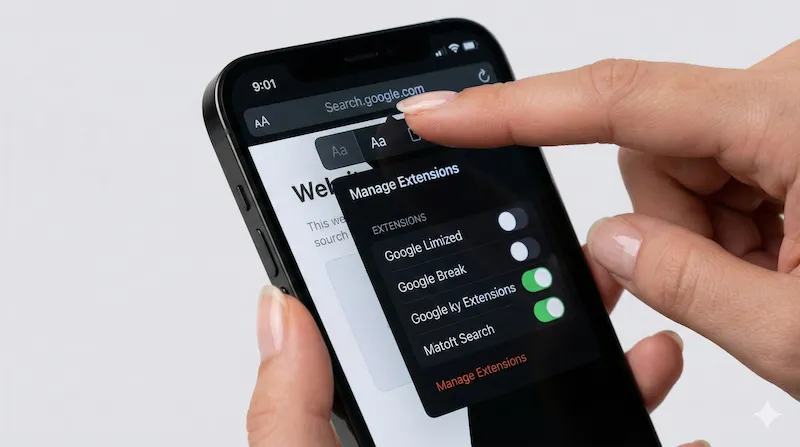
The 2-Minute Setup: Dark Google Everywhere
Google Services: Which Get Darkened?
| Google Surface | Google Native Dark | Noxri in Safari |
|---|---|---|
| Search (google.com/search) | Yes, if logged in | Yes, always |
| Google Images | No | Yes, thumbnails preserved |
| Google Maps (web) | Partial (gray map) | Yes, map tiles preserved |
| Google Docs / Sheets / Slides | Separate toggle per app | Yes, canvas preserved |
| Google Drive | No | Yes |
| Google Translate | No | Yes |
| Shared read-only Doc links | No (defaults to light) | Yes |
| Third-party result pages | No | Yes — covers every tap |
Google Images and Smart Invert
The obvious objection to any Safari dark-mode extension is "won't it break Google Images?" It would, if the extension worked by flipping colors. Noxri uses Smart Invert: it rewrites backgrounds, text and CSS rules only, and explicitly skips <img>, <video>, <canvas> and SVG icons. Your Google Image results come back in their original colors — even Street View panoramas and shopping product photos. Only the page chrome turns dark.
Google Maps Web
Google Maps on the web has an in-app dark toggle for the map tiles, but the surrounding UI — search box, the routes panel, the saved-places sidebar — stays white. Noxri darkens that UI while leaving the map itself (whatever style you picked inside Maps) intact. Route lines, traffic coloring and transit-line gradients all render correctly.
Google Search Dark Mode on iPhone Safari: FAQ
References & Further Reading
-
[1] Apple Developer Documentation. "Creating a Safari Web Extension."
Apple Documentation → -
[2] Google Support. "Turn on Dark Theme for Google Search."
Google Search Help → -
[3] Google Workspace. "Use a Dark Theme in Docs, Sheets, and Slides."
Workspace Help →
Make Google dark everywhere.
Install the free Noxri extension — one tap and every Google surface plus every result page opens in comfortable dark mode on Safari.
Download Noxri from the App Store