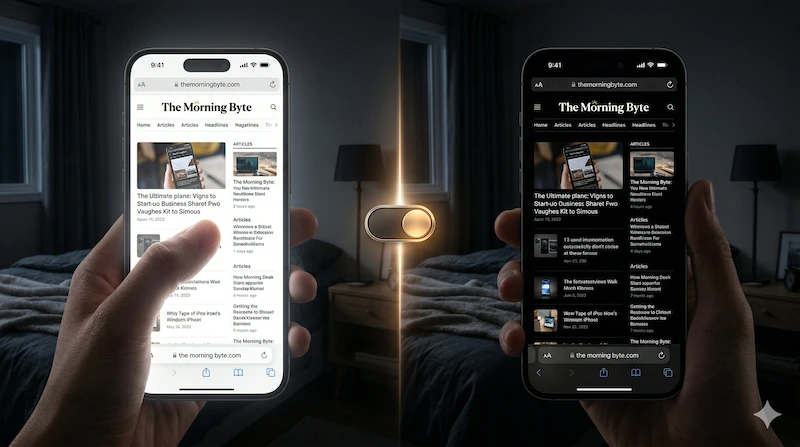
You are lying in bed, the room is pitch black, and you have your iPhone's system dark mode turned on. You open Safari to read an article, and suddenly—BAM!—a blindingly white webpage lights up the room like a flashlight. We have all been there, and it is terrible for your eyes.
If you are wondering how to force every single website in iOS Safari to use a dark background, you are not alone. In this guide, we will explain exactly how to achieve a true, universal dark mode on your iPhone.
Why Apple's Built-in Dark Mode Isn't Enough
Apple introduced a gorgeous system-wide Dark Mode in iOS 13. When you turn it on via the Control Center, your menus, messages, and settings instantly turn beautifully black. However, there is a catch when it comes to the web.
Safari respects the system theme, meaning the Safari toolbar and menus turn dark. But the actual content of the websites? That is up to the individual website developers. Millions of websites—including massive platforms like Amazon and Pinterest—do not have a native night theme built into their code. Therefore, Safari has no choice but to render them in their default, glaring white state.
The Best Way to Force Dark Mode in Safari
To force these stubborn websites to go dark, you need a tool that acts as a bridge between Safari and the website code. The cleanest, safest, and most battery-efficient way to do this is by using a dedicated Safari Web Extension.
This is exactly why we built Noxri. It is a lightweight app that integrates directly into Safari, functioning as a "Smart Invert" engine specifically for web content.
How it works:
- Universal Application: Noxri forces a dark background on virtually any website, regardless of whether the site officially supports it.
- Smart Processing: It turns blinding white backgrounds into comforting deep grey or OLED black, while keeping your photos and videos in their original, natural colors.
- Zero Configuration: Once enabled, it runs silently in the background. No coding or complex setup required.
Does iOS "Smart Invert" Work Better?
Some users try to use the iPhone's accessibility feature called "Smart Invert" (found in Settings > Accessibility > Display & Text Size) to darken websites. While it is a great accessibility tool, it is not ideal for daily web browsing. Smart Invert often struggles with complex modern web layouts, frequently inverting the colors of images, emojis, and videos, making them look unnatural or like photo negatives.
A dedicated Safari extension like Noxri is much more sophisticated, ensuring your media stays perfect while your eyes stay protected.
Stop Blinding White Screens Today
Protect your eyes at night and save battery life. Get the ultimate dark mode extension for your iPhone.
Download Noxri on App Store